Maintaining Signals
In EATB GUI, click  Signals to create new signals as well as to import or export signals.
These signals are relevant to configurations created with the Configuration Creator. Configurations created with the EATB Worker are not affected by the signals configured in the Signals.
To add a new signal
You can provide multiple aliases to a given signal ID. This can be helpful if the same signal ID has been measured by different devices.
-
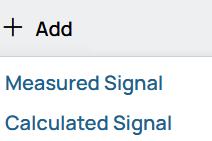
Click Add.
-
In the drop-down menu, select Measured Signal.
- In the Signal ID field, enter the signal ID for which you want to create an alias .
- Enter the signal label and the hardware.
-
If you want to addanother alias, click Add Alias.
-
Click Save.
The new signal is added to the signal list. You can quickly display it via the keyword search or by sorting the Type column to show measured signals at the top:

-
Via the Actions column, you can edit or delete each signal.
Note
The signals from the signal list can be used in charts. Removing used signals can lead to an empty chart when generating a report.
To add a new calculated signal
- Click Add.
-
In the drop-down menu, select Calculated Signal.
- In the Signal ID field, enter a name for your new calculated signal.
-
Enter the formula. You can use the signal IDs of other measured and calculated signals in your formula.
You can use the following mathematical functions:
-
sin( x ), cos( x ), tan( x )
-
abs( x ), round( x ), ceil( x ), floor( x )
-
sqrt( x ), exp( x ), power( x, y ), log( x ), log10( x )
-
Constants: e, pi
All numpy functions are made available by referring to np.<numpy function>. For a list of supported numpy functions in np, see https://numpy.org/doc/2.1/reference/routines.math.html.
-
-
Add all used signal IDs of the formula either manually or automatically via Autofill used signals to the Used signals field.
-
Click Save.
The new signal is added to the signal list. You can quickly display it via the keyword search or by sorting the Type column to show calculated signals at the top:
In the Configuration Creator, you can use the calculated signal in the same way as any measured signal.
- Via the Actions column, you can edit or delete each signal.
-
Note
The signals from the signal list can be used in charts. Removing used signals can lead to an empty chart when generating a report.
To make bulk changes
- Click Export.
- The config_signals.csv is exported and stored in your download folder.
- Make your changes within the CSV file.
- To re-import the CSV file with the changed signals, click Import.
To delete all signals in the signal list
|
Note |
|
Note that not only all measured and calculated signals will be deleted but also all their dependencies, i.e., all configurations from the Configuration Creator and all filters. |
- To avoid any data loss, create a copy of the .EATB directory in your user directory first.
- Click Clear Signals.
-
Enter DELETE EVERYTHING into the input field.
- Click Clear.