Add FMU-based signals
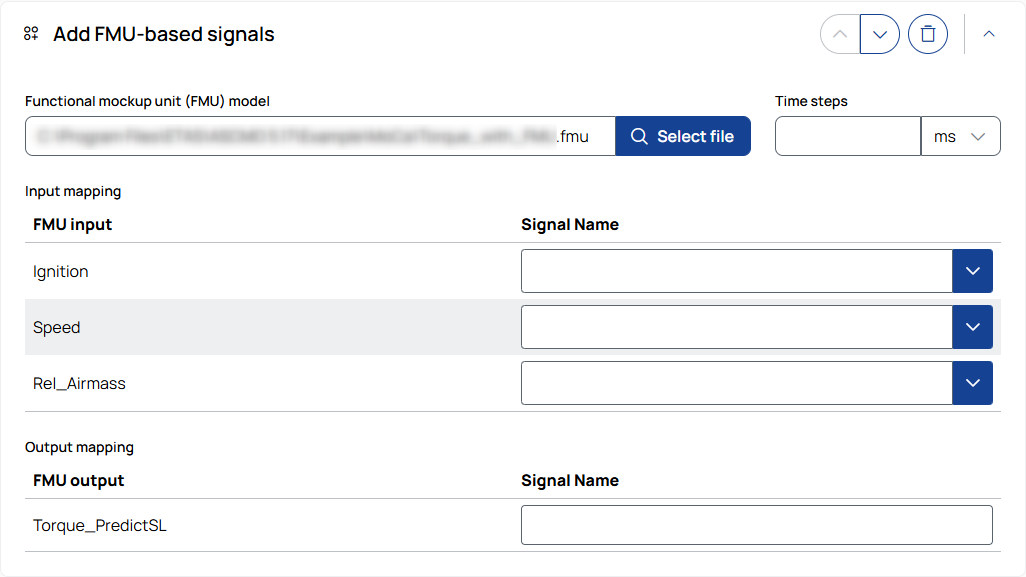
Functional mockup unit (FMU) model
Enter the path to the FMU file or select it using  . Alternatively, you can drag and drop the file onto the input field.
After selecting a valid FMU file, the FMU inputs and outputs are automatically detected and displayed.
Time steps
Enter a positive value to define the time interval at which the FMU is executed to calculate output signals.
To select the unit, use the drop-down list.
Input mapping
FMU input: Displays the input variables defined in the FMU model
Signal name: Select the measurement signal that is used as input for the corresponding FMU variable. Autocomplete lists signals as label and, where available, label\device. If the same label exists on multiple devices, select the entry for the required device. See Signal source.
Output mapping
FMU output: Displays the output variables defined in the FMU model.
Signal name: Enter the name of the signal to be created. To assign it to a device, use label\device; the last backslash separates the signal label from the device name.
|
Note |
|---|
|
FMU-based signals may replace existing signals with the same name. Changing the FMU file resets all input and output mappings. |