Slice files by condition
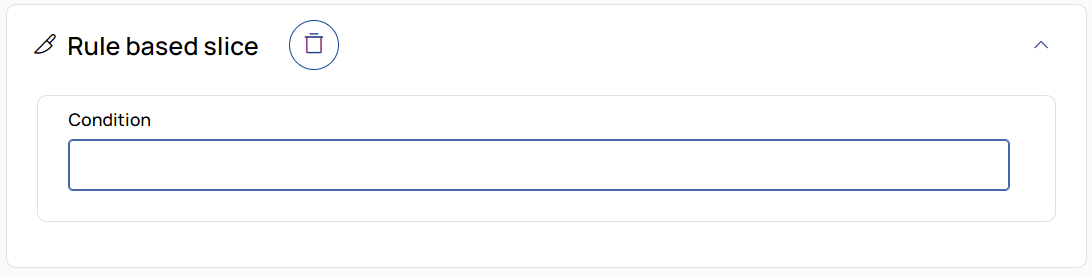
Slices a measurement file into smaller segments based on a user-defined rule. You can select different slice modes depending on how the slice boundaries should be detected.
Slice mode
Select how the slice boundaries are calculated:
- Condition: Keeps only the values that meet the condition.
- One sided trigger: Creates slices with a defined duration after a condition becomes true. Overlapping slices are merged into one slice.
- Two sided trigger: Creates slices between a start condition (From) and an end condition (Until).
Condition
Enter a condition using Python syntax, but with limited supported features. NumPy is available.
Only data points that satisfy the condition remain. Multiple signals can be combined in the expression.
Example: vehicleSpeed > 50
|
Note |
|---|
|
Only the following Python keywords are supported: and, elif, else, if, in, is, not, or, return, time. Formulas are not validated during editing. Errors only appear during job execution. Signal names must be valid Python identifiers:
|
One sided trigger
Creates a slice whenever the condition becomes true.
The slice starts when the condition first becomes true, is extended by the configured Duration, and is shifted by the Offset. To select the unit, use the drop-down list.
Overlapping slices are automatically merged into a single slice.
Example: A rule such as vehicleSpeed > 50 creates a slice from the time the speed first exceeds 50, extended by the configured duration and shifted by the offset.
Two sided trigger
Creates a slice between two independent conditions.
The From condition defines when the slice starts; the Until condition defines when the slice ends. Offsets are applied to both slice boundaries. To select the unit, use the drop-down list.
Each valid pair of conditions results in a slice.
Example: For vehicleSpeed < 50 until vehicleSpeed > 100, a slice is created for the time span where the vehicle is between these thresholds.

To remove the operation from the job, click the trash can button.

To move the operation up or down in the job sequence, use the arrow buttons next to the trash can icon.
 /
/
To expand or collapse the operation, click the arrow in the top-right corner of the operation panel.