Creating a New Clone Project
To create a new clone project
- Perform one of the following steps:
- Click Create new in the "Home" screen.
- Go to the File menu > Create new.
The "Create new" window is displayed.
- Click Create new in the "Home" screen.
- Click Clone project.
The screen corresponding to clone project is displayed.
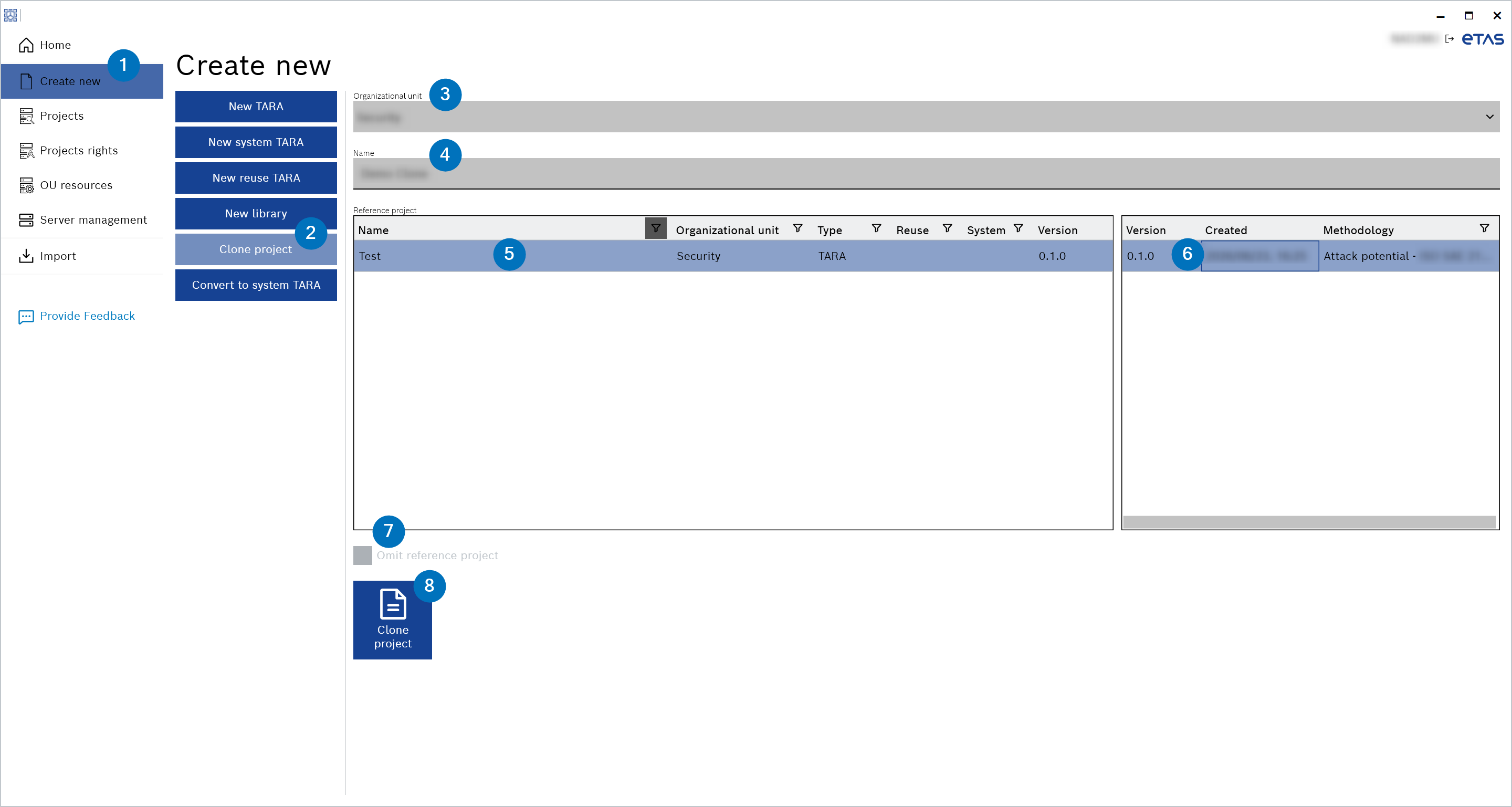
Fig. 3: Clone project
- Select an organizational unit from the "Organizational unit" drop-down list.
- Enter the "Name" of a project.
- Select a reference project from the list.
- Select a version of the reference project from the list.
The "Clone project" button is enabled. - Decide whether you want to omit the reference project and activate or deactivate the "Omit reference project" check box. This step is optional.
- Click Clone project.
The new clone project is created and the "Cockpit" window is displayed with the metadata for the new clone project.
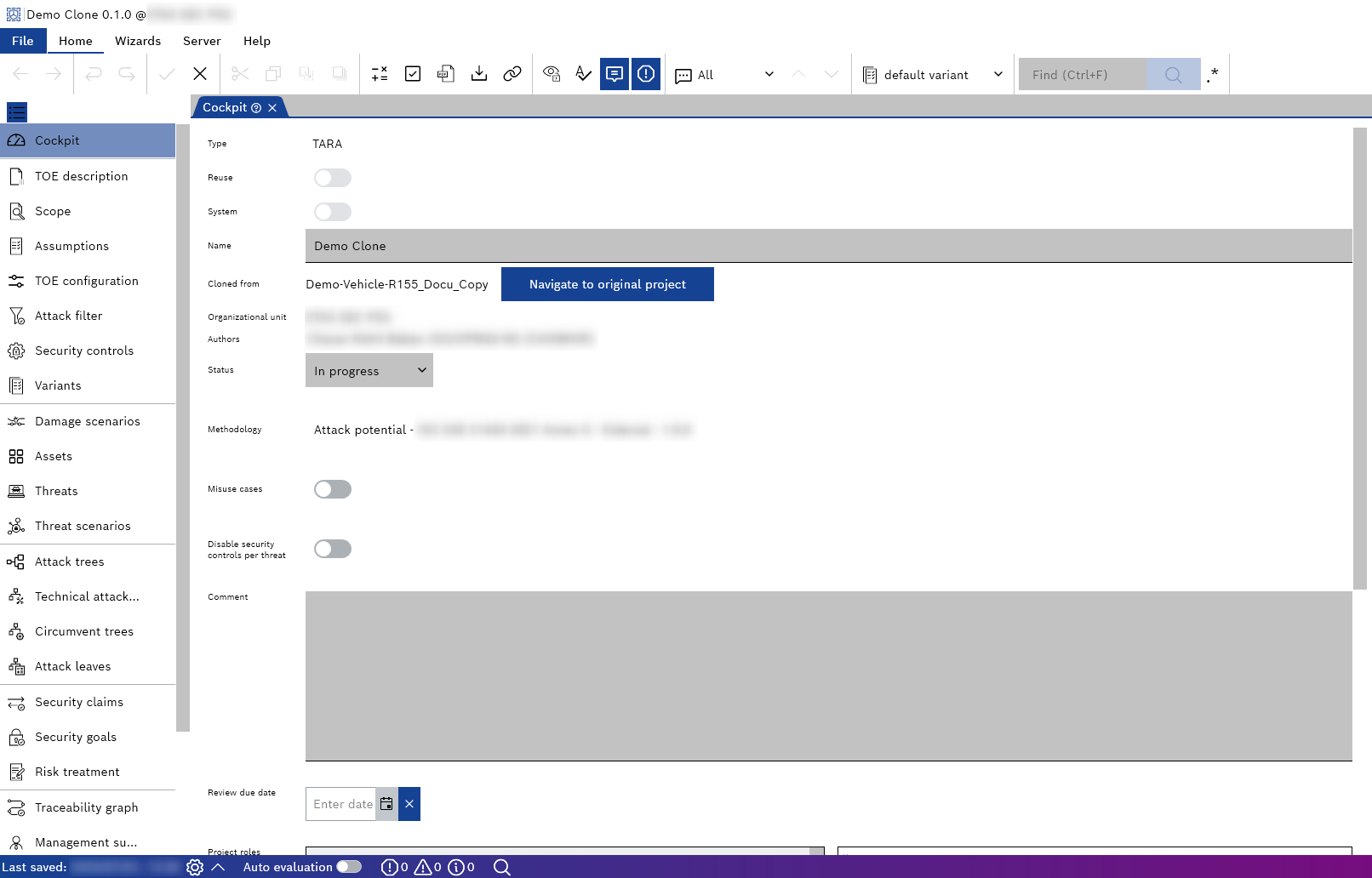
The Project Explorer window on the left corresponds to the clone project workflow. You can navigate it from top to bottom, guiding you through the various steps required to complete the clone project.