Installing CycurRISK
To install CycurRISK from the Internet
- Go to link https://www.etas.com/en/products/download_center.php.
- Download and save .zip file.
- Unzip the downloaded file and run the .exe file.
The Welcome to CycurRISK 2.19.2 Setup dialog box is displayed.
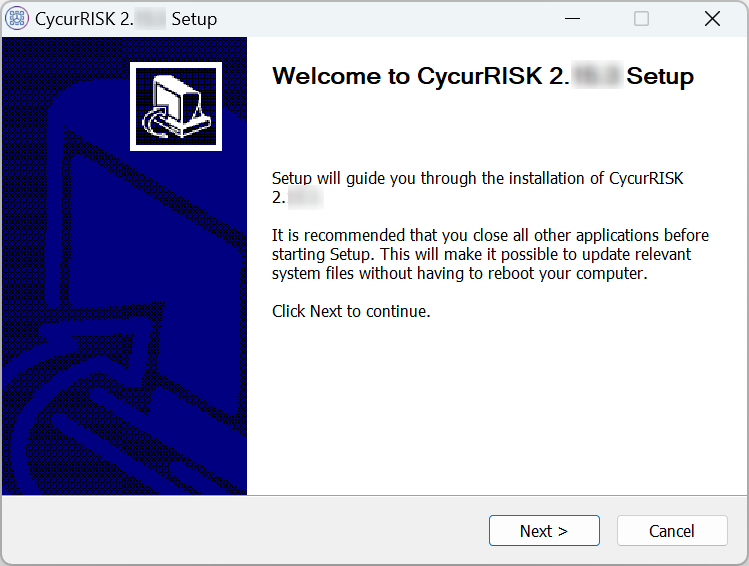
- Click Next> to continue.
The ETAS Safety Advice dialog box is displayed.
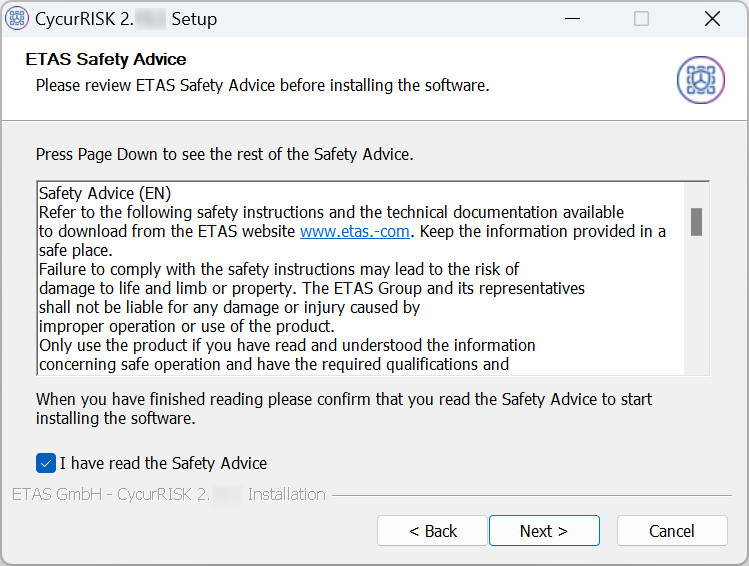
- Review and confirm the safety advice before installing the software. Click Next> to continue.
The Choose Install Location dialog box is displayed.
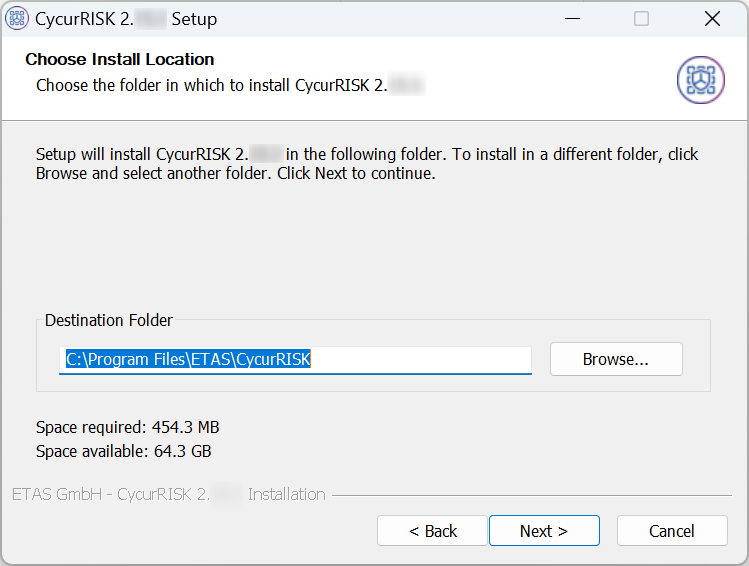
- By default, C:\Program Files\ETAS\CycurRISK folder will be created for installation. Specify the installation path or click Browse... to select the different folder to install CycurRISK.
- Click Next> to proceed with further installation steps.
The Choose Start Menu Folder dialog box is displayed to create the CycurRISK V2.19.2 shortcuts.
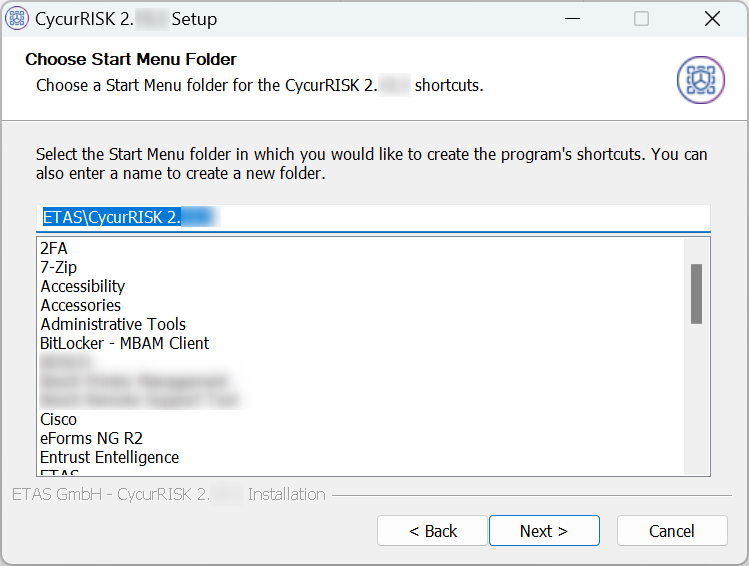
- Click Next> to continue.
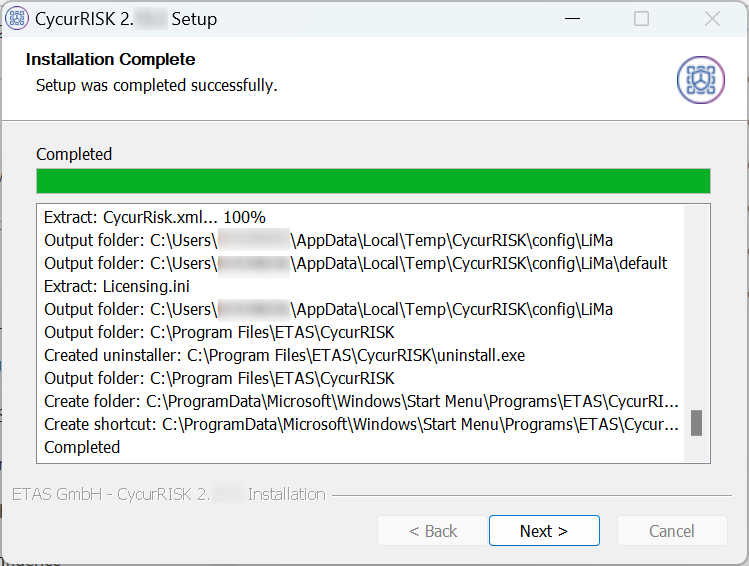
The installation process is initiated. The Installation Complete dialog box is displayed after the completion of the installation process.
|
Note |
|---|
|
A progress indicator shows the progress of installation. |
- Click Next> to continue.
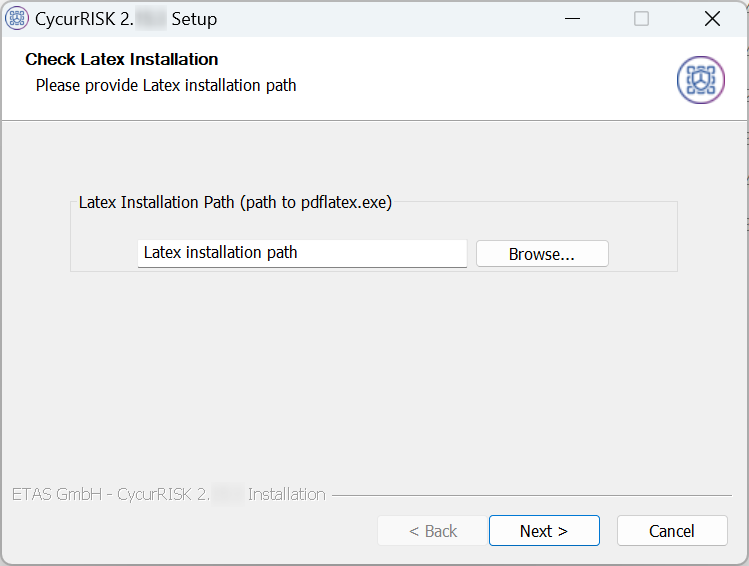
The Check Latex Installation dialog box is displayed.
|
Note |
|---|
|
The CycurRISK delivery package does not contain the Latex installer. You must install it from another source. |
- Specify the latex installation path or click Browse... to select the latex installation path.
- Click Next> to continue.
The Completing CycurRISK 2.19.2 Setup dialog box is displayed.
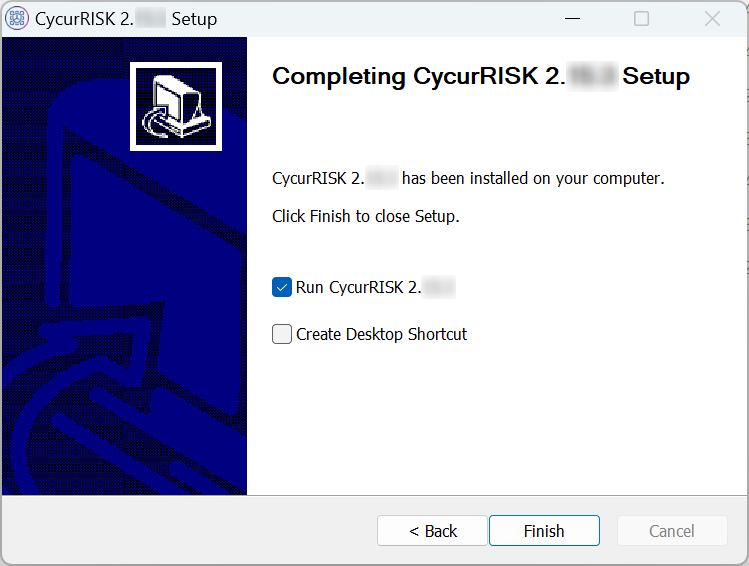
- Click Finish to complete the installation.
- CycurRISK is installed in the selected location. This will automatically delete the previous versions of the tool and old user configuration folders.