Adding or Removing a Project Lock
You can lock or unlock the project automatically or manually so that another user can not edit it. When you open the project, it is automatically locked for editing by another user. However, this user can open the project in read-only mode.
To manually lock the project
- Open the project and go to the Server menu.
The server sub-menus are displayed.
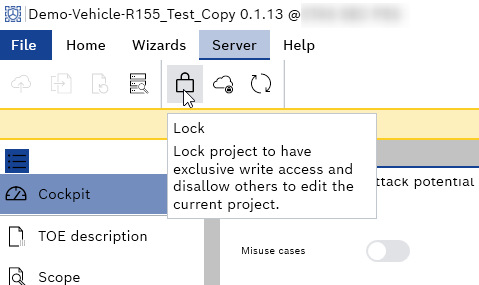
- Click Lock icon.
- The project is locked.
To manually unlock the project
Perform the following steps:
- Go to the File menu > Projects.
The "Projects" window is displayed.
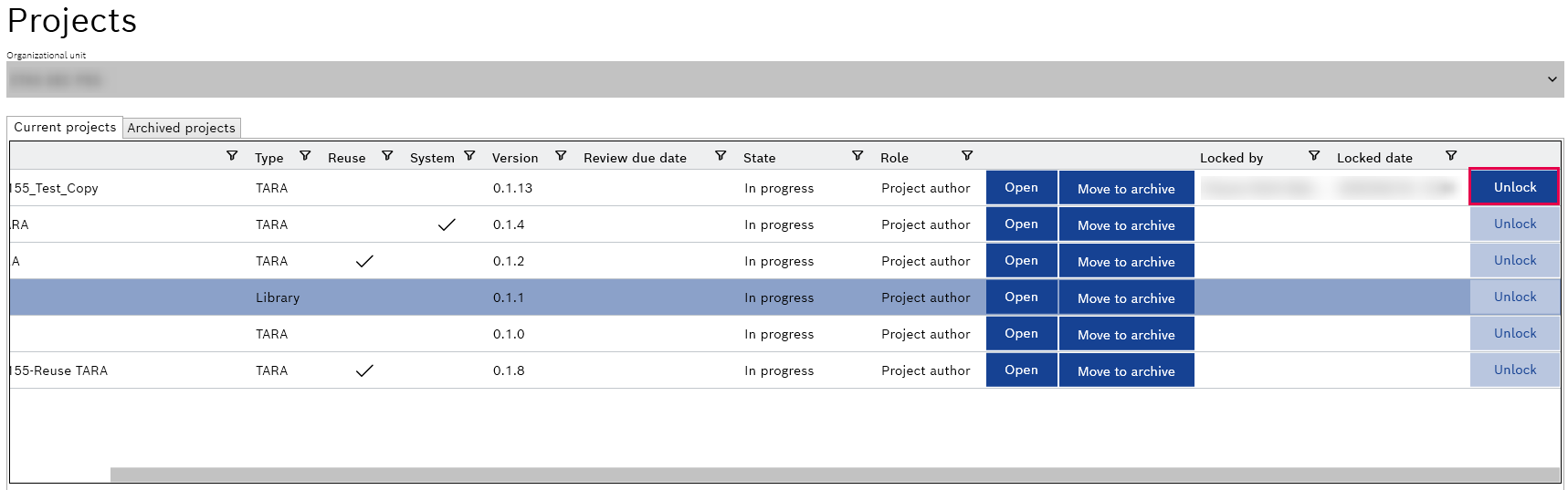
- Select the organizational unit from the "Organizational unit" drop-down menu.
- Go to the locked project and click Unlock.
- The project is unlocked.
or
- Open the project and go to the Server menu.
The server sub-menus are displayed.
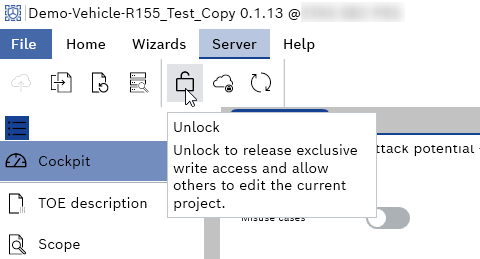
- Click Unlock icon.
- The project is unlocked.