Installing
Install ETAS ASCMO
- Go to the directory where the ASCMOinstallation file is located.
-
Double-click Setup_ETAS-ASCMO_Vx_x_20xxx.exe.
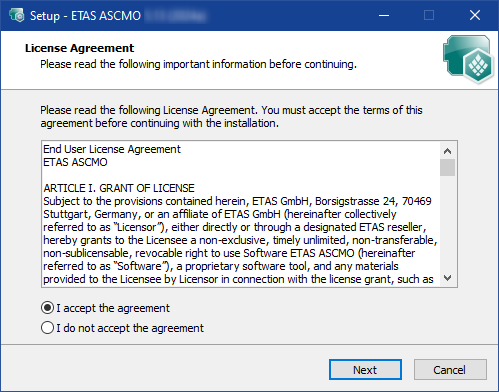
The License Agreement window opens.
-
Read the license agreement carefully, then activate the I accept the agreement option.
-
Click Next.
If you have already installed an ASCMO version, the path (destination location and start menu folder) of the initial installation will be used and steps 5 to 8 will not be available.
-
In the Set Destination Location window, accept the default folder or click Browse to select a new directory.
-
Click Next.
-
In the Select Start Menu Folder window, accept the default folder or click Browse to select a new folder.
-
Click Next.
-
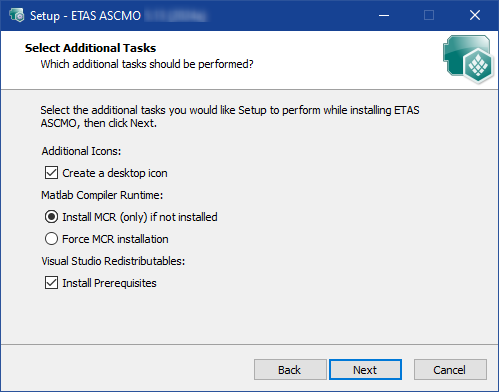
Activate the Create a desktop icon checkbox if you want to create an icon on the desktop.
-
Choose whether to force the installation of the MATLAB® Compiler Runtime or to install it only if it is not already installed.
-
If necessary, activateInstall Prerequisites.
-
-
Click Next.
-
In the Ready to Install window, click Install to start the installation.
or
If you want to change the settings, click Back.
The installation process begins. A progress indicator shows the installation's progress. When the installation is complete, the Completing the ETAS ASCMO Setup Wizard window opens.
-
Click Finish.
-
The installation is complete. ASCMO can be started.