In/Outputs Menu
The In/Outputs menu consists of the following entries:
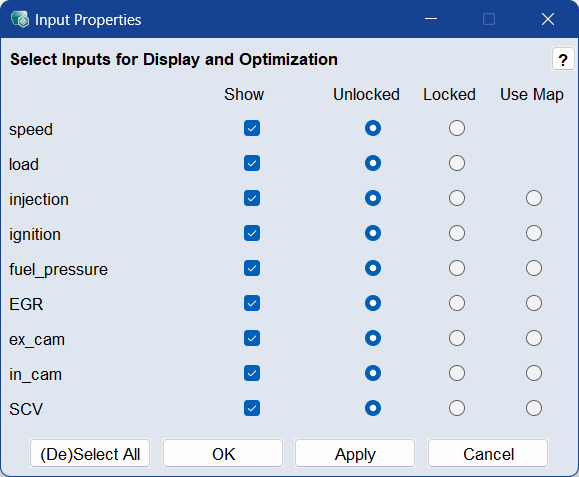
Input Properties
Opens the  Input Properties window where you can select the inputs to be displayed and included in the optimization.
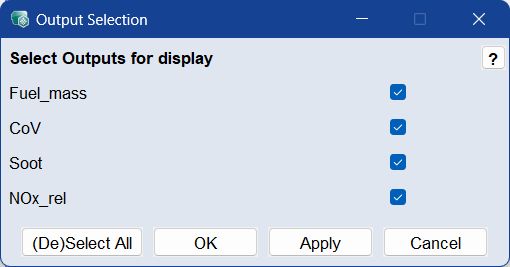
Select Outputs
Opens the Output Selection window where you can select the outputs to be included in the model training, transformation, etc.
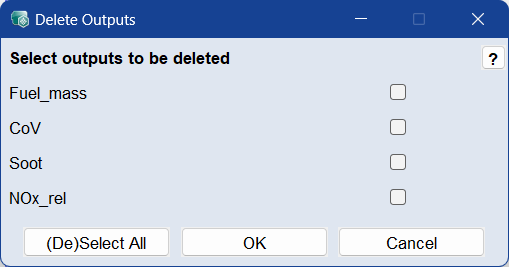
Delete Outputs
|
Note |
|---|
|
Deleting an output cannot be undone. Use this function with care. |
Opens the Delete Outputs window where you can select outputs to be excluded from modeling.
Set Operating Point Axes
Opens the OP-Axes window where you can select the inputs you want to use as operating point axes.
Hull on Inputs
Opens the Configure Convex Hull on Inputs window where you can set up the hull(s) you want to use.
Add Calculated Output
Opens the Add Calculated Output window where you can add an additional output that is calculated from existing inputs and outputs. This output is displayed in the ISP view and is a component of the project dataset.
Add Outputs for Anomaly Detection
Adds an output for anomaly detection to the project. The new output is displayed in the ISP view and can be used to monitor whether the current input data is within the distribution of the training data.
After adding the output, open the Output Properties for <output> and assign a Gaussian Mixture Model to the anomaly detection output. The Gaussian Mixture Model represents the normal or training data as a mixture of Gaussian distributions and calculates a fit score for new data points. If a new point is located in a low-probability area, it is flagged as an outlier.
The anomaly detection output does not evaluate the prediction accuracy of the model. It estimates whether the selected model output can be trusted for the current input.
The trained anomaly detection model can be exported to Embedded AI Coder together with the output models. In Embedded AI Coder, the code for the anomaly detection model and the selected output models can be generated for execution on the electronic control unit, see Model Export to Embedded AI Coder.
Link Inputs
|
Note |
|---|
|
The Link Inputs menu option is only available if you have activated the Advanced Settings. We recommend to restart ASCMO-STATIC after activating the advanced settings. |
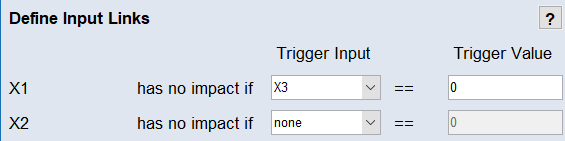
Opens the Linked Inputs window where you can determine a condition for each input where that input does not influence the outputs.
2D Plot Operating Points
Opens the Operating Points Manager window.
2D Plot Inputs
Opens the Select Axes window where you can select axes pairs for 2D plots and show the plots.
3D Plot Outputs
Opens the Select Inputs/Outputs for 3D Plots window where you can select axes triplets for 3D plots and show the plots.