ASCMO-STATIC | ASCMO-DYNAMIC >
Lock/Unlock OPs with a Condition
Calibration menu > Operating Points > Lock OPs  > Lock/unlock OPs with a Condition
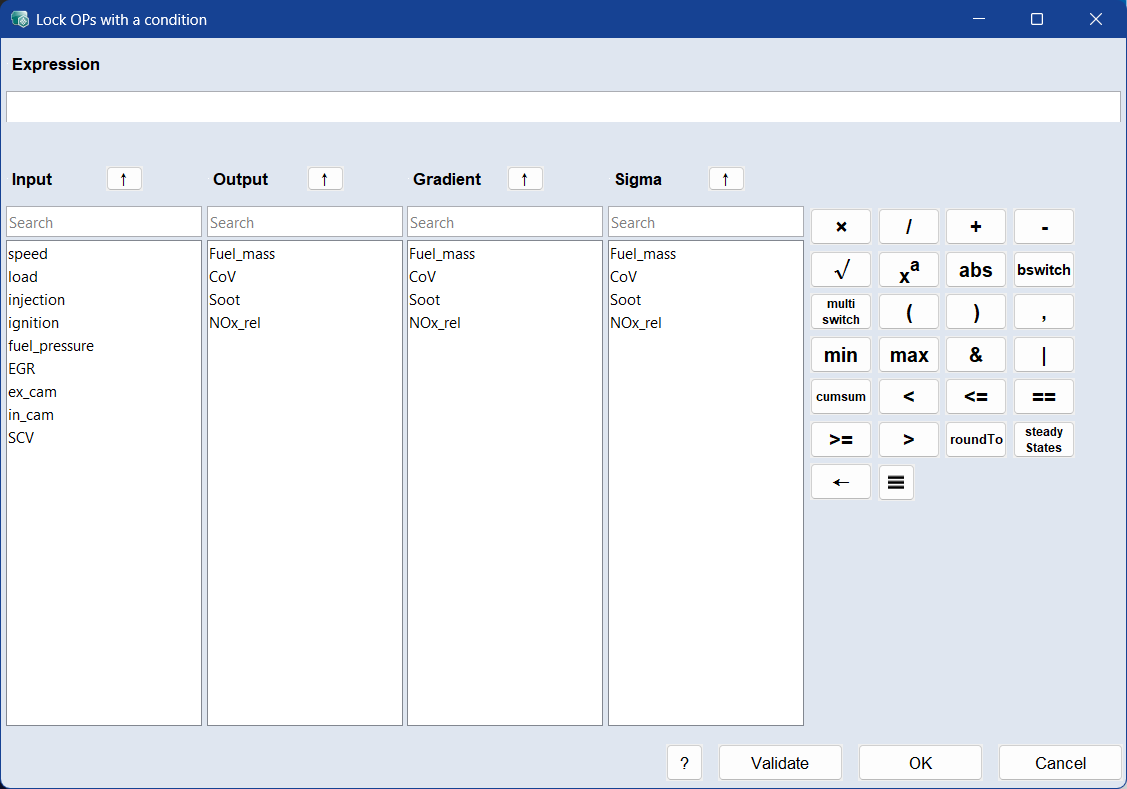
The Lock/Unlock OPs with a Condition window allows you to create an expression for selecting the operating points to be locked or unlocked, e.g., speed > 200 & load < 3. It contains the following elements:
Expression
Displays the condition that will be evaluated.
Input
Lists all available input variables.
You can search the list using the search field.
To insert an input variable into the expression, drag and drop it into the expression field, or select it and click the  button.
Output
Lists all available output variables.
You can search the list using the search field.
To insert an output variable into the expression, drag and drop it into the expression field, or select it and click the button.
Gradient
Lists all available gradient variables.
You can search the list using the search field.
To insert a gradient variable into the expression, drag and drop it into the expression field, or select it and click the button.
Sigma
Lists all available sigma variables.
You can search the list using the search field.
To insert a sigma variable into the expression, drag and drop it into the expression field, or select it and click the button.
Calculation buttons


|
Inserts the *, /, +, or - operator into the expression.
This results in element-wise multiplication, division, addition, or subtraction.
|

|
Inserts the square root sqrt( operator into the expression. The expression must end with )..
|

|
Inserts the ^ operator into the expression.
x^y means row-by-row x to the power of y.
|

|
Inserts the absolute value abs( operator into the expression. The expression must end with ).
Example abs(-3) ≥ 3 abs(-3) ≥ 3
|

|
Inserts the bswitch( operator into the expression. The expression must end with ).
Binary switch, element-wise:
y = bswitch (x, a, b)
y = a for x <= 0
y = b for x > 0
Examplebswitch (%speed% > 2000, %Y_1%, %Y_2%)
|
|

|
Inserts the multiswitch( operator into the expression. The expression must end with ).
A selector which chooses from multiple inputs element-wise.
The selector uses one-based indexing.
y = multiswitch (selector, x1, x2, x3,…)
y[n] = x1[n] for selector[n] = 1
y[n] = x2[n] for selector[n] = 2
y[n] = x3[n] for selector[n] = 3
Example
y = multiswitch(selector, x1, x2)
Selector = [2, 1, 2]
x1=[10, 20, 30]
x2 = [100, 200, 300]
y = [100, 20, 300]
|
|
Inserts an opening or closing bracket into the expression.
|

|
Inserts a comma into the expression.
|
|


|
Inserts the min(/max( operator into the expression. The expression must end with )..
min = minimum of two inputs
max = maximum of two inputs
Examplemin(%in1%, %in2%), max(%in1%, %in2%)
|
|

|
Inserts the & operator into the expression, which means a logical element-wise AND.
Example%Speed% > 2000 & %Load% > 6
|
|

|
Inserts the | operator into the expression, which means a logical element-wise OR.
Example%Speed% > 2000 | %Load% > 6
|
|

|
Inserts the cumsum( operator into the expression, which means the cumulative sum of a numerical sequence. The expression must end with ).
Examplecumsum(%y%): [1 2 4] ≥ [1 3 7]
|
|



|
Inserts the </<=/==/>=/> operator into the expression, which means is less than/less than or equal to/equal to/greater than or equal to/greater than.
|
|

|
Inserts the roundToDiscreteValues( operator into the expression, which rounds a node to a specific discrete value. The expression must end with ).
After inserting the operator, you need to select a discrete parameter and enter the desired values. The syntax is as follows:
roundToDiscreteValues(node, [value1, value2, ...])
Examples
roundToDiscreteValues(%calMap_SCV%(%speed%, %load%), [0, 1])
In this example, the output of the calibration map calMap_SCV is rounded to the discrete values 0 and 1 based on the inputs speed and load.
roundToDiscreteValues(%myTernary%, [0, 1, 2])
Here, the value of myTernary is rounded to the discrete values 0, 1, and 2.
|
|

|
Inserts the steadyState_abs( operator into the expression, which calculates the steady state of a signal based on the window length and window height. The expression must end with ). The syntax is as follows:
steadyState_abs(x, windowLength, windowHeight, sampleRate)
Example
steadyState_abs(%signal%, 10, 200, dT)
In this example, the steady state of the signal is calculated using a window length of 10, a window height of 200, and the sample rate represented by dT.
|
|

|
Deletes the last entry in the expression field (backspace).
|
|
The following operators are supported. Select them from the burger menu ( ) or type them in manually: ) or type them in manually:
|
|
log(x)
|
The natural logarithm (base e).
Examplelog(exp(2)) => 2
|
|
log10(x)
|
The common logarithm (base 10).
Examplelog10(10^2) => 2
|
|
exp(x)
|
Euler's number raised to the power of ex.
Exampleexp(1)) => 2.718
|
|
sin(x), cos(x), tan(x), tanh(x), atan(x)
|
The trigonometric functions, the input is in radians.
Examplesin(3.1416) ~> 0
|
|
atan2(x, y)
|
The four-quadrant inverse tangent, input is given in radians.
Exampleatan2(%id%, %iq%)
|
| delayseq(data, n)
|
Delay a signal by n time steps. The start of the signal is filled with zeros.
Exampledelayseq([1; 2; 3; 4;], 2) => [0; 0; 1; 2]
|
| bitget(x, bitPos)
|
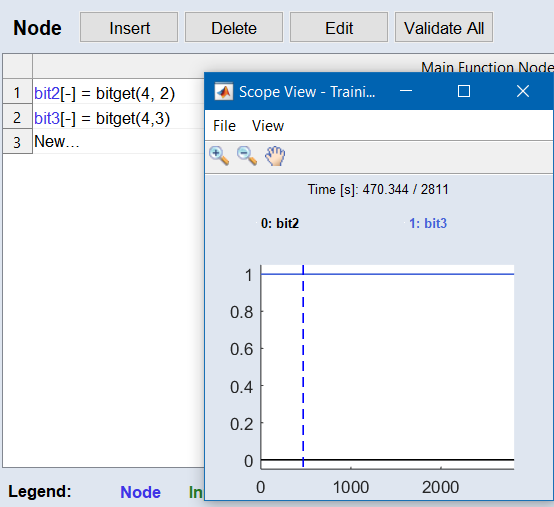
The MATLAB® bitget function returns a bit value at a specified position (bitPos).
Example
bitget(4, 3) returns 1
bitget(4, 2) returns 0
In this example, the integer 4 is represented in binary as 100. The function bitget(4, 3) retrieves the bit at position 3, which is 1, while bitget(4, 2) retrieves the bit at position 2, which is 0.
|
|
Further notations are supported:
|
|
z = [x, y]
|
Creates a multidimensional vector. A vector can be extracted with y = z(:, 2). This can be useful, e.g., when a subfunction shall returns multiple nodes/vectors.
|
|
y = zeros(size(x))
|
Creates a vector of zeros.
|
|
y = ones(size(x))
|
Creates a vector of ones.
|
 ?
?
Opens the online help in the appropriate context.
Validate
Checks the validity of the expression.
OK
Applies your settings and closes the window.
Cancel
Discards your settings and closes the window.
See also
Operating Points Manager