Parameter/Model Menu (ASCMO-DYNAMIC ExpeDes)
The Parameter/Model menu offers you the ability to manage maps and curves as basis for calculating constraints. It consists of the following entries in the menu:
→ New
In this window you can use Parameter/Model → New to add a new Map or Curve.
For more information on how to create a new map or curve, see"Create a Map".
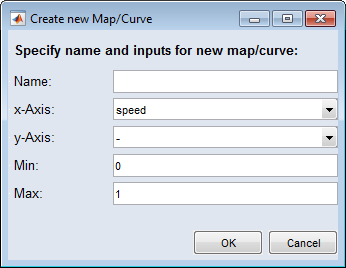
OK
The inputs will be accepted and a new Map/Curve will be created.
Cancel
The entries will be discarded. No new Map/Curve will be created.
→ Import
If such data (e.g. in form of a map) already exist, they can be imported as *.dcm or *.csv via Parameter/Model → Import.
For information about importing Curves/Maps, see "Importing map data".
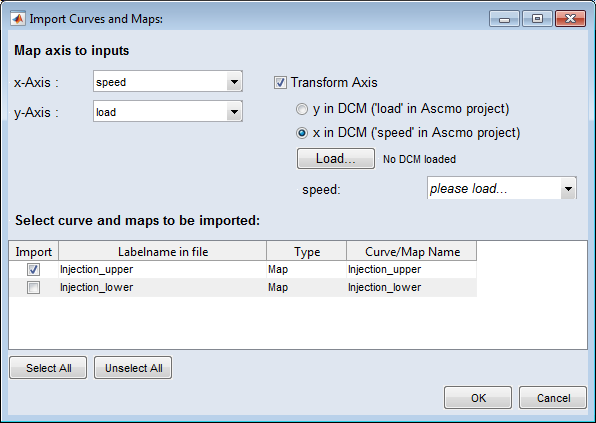
Select All
Selects all in the list contained Curves/Maps for the import.
Unselect All
Cancels the selection of all Curves/Maps for the import. The selection can only be rejected if at least one Map/Curve was selected previously.
OK
The selected Maps/Curves in the list will be imported.
Cancel
All entries will be discarded and the window will be closed.
Transform Axis
If the axes of the map that you want to import is not stretched over the operating point axis (Speed / Load) used, you have the ability to transform an axis of the map.
To transform an axis of a map, enable the option Transform Axis.
For the conversion you first need another map that contains the conversion factor. This map can be specified with Load.
|
Note |
|---|
|
A map that you have selected for the transformation of an axis will not be imported because it is only required to determine the conversion factor. |
A DCM-file can contain multiple maps, you must specify the required maps via the selection list. After completion of the assignment, the transformed map can be imported via OK.
→ Export
If you already have such map data, they can be exported as *.dcm or *.csv via Parameter/Model → Export...
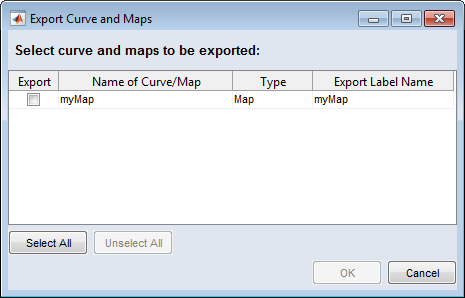
Select All
Selects all in the list contained Curves/Maps for export.
Unselect All
Cancels the selection of all Curves/Maps for the export. The selection can only be rejected if at least one Map/Curve was selected previously.
OK
The selected Maps/Curves will be exported.
Cancel
All entries will be discarded and the window will be closed.
→ Delete
Opens the "Delete Curve and Maps" window, where you can delete already applied maps or curves.
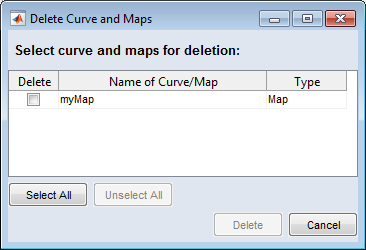
Select All
Selects all in the list contained Curves/Maps for deletion.
Unselect All
Cancels the selection of all Curves/Maps for deletion. The selection can only be rejected if at least one Map/Curve was selected previously.
OK
The selected Maps/Curves will be deleted.
Cancel
All entries will be discarded and the window will be closed.
→ Edit
If you have already created a curve/map, you can use Parameter/Model → Edit → <curve/map> to edit the desired curve/map afterwards.
For more information on editing a curve/map, see "Processing a map".
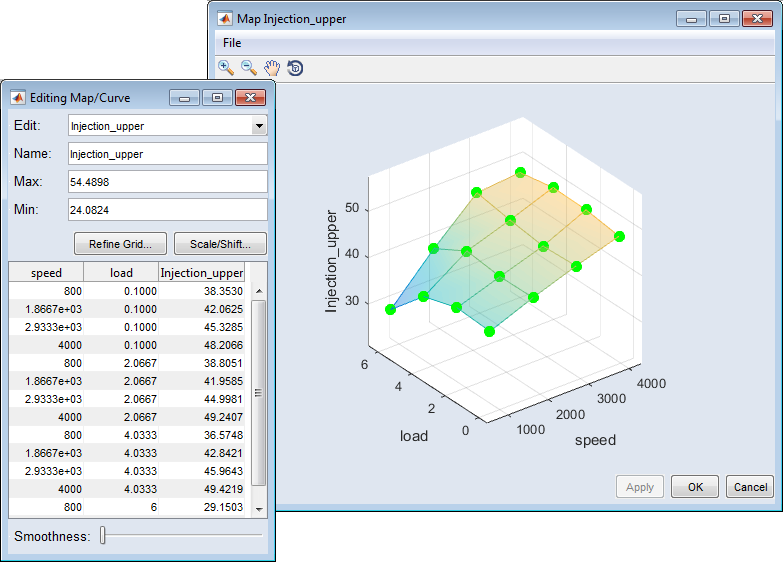
"Editing Map/Curve" window:
-
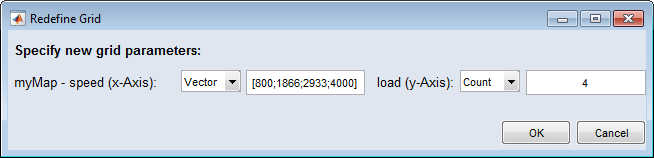
 Redefine Grid
The number of points that define the constraining lines/areas can be controlled via Redefine Grid. The
 "Redefine Grid" window for entering the number of desired grid nodes opens.
If you select Count in one of the combo boxes you can edit the number of grid points on the respective axis.
If you select Vector, you can provide a vector of grid points for the respective axis.
-
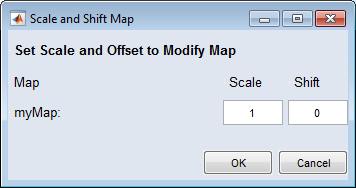
Scale/Shift
Opens the
"Scale and Shift" window. In this window, the borders can be slightly extended by adding scales and shifts for the lower and upper limits.Note
To extend the lower borders, the value of the shift must be negative.
"Map <name>" window:
-
Apply
Accepts your settings, but does not close the windows. If no changes have been made, the Apply button is not available.
-
OK
Applies your settings and closes the window.
-
Cancel
Discards your settings and closes the window.