Configure Convex Hull on Inputs
In/Outputs menu >Hull on Inputs
Or
In the optimization windows: Hull (2D) button.
The convex hull on inputs is a bound around the training data. This bound can be considered in the optimization, so that optimization results stay inside the range of the training data.
 How the hull model works
Use the hull model to check whether a candidate input setting lies inside the convex hull formed by the training data. If an input is inside the hull, model predictions are generally more reliable; if it falls outside, predictions may be extrapolations.
In two dimensions, the model forms edges around the outermost training points. In higher dimensions (n-D), these become faces. Together they enclose all training data and define the convex hull.
Distance returned by the hull model:
- Sign: Negative values indicate the point is inside the convex hull; positive values indicate it is outside.
- What is measured: For efficiency, the model computes an orthogonal projection of the distance to the nearest hull edge/face rather than the Euclidean distance to the polygon/polytope.
- Multiple hulls: A hull model often contains several pairwise or user-defined hulls. The returned value is the maximum (worst-case) distance across all evaluated hulls.
- Why this matters: The returned value can be used in optimization as a constraint or penalty term to keep solutions within the data-supported domain.
Example:
The following example shows how distances are computed:
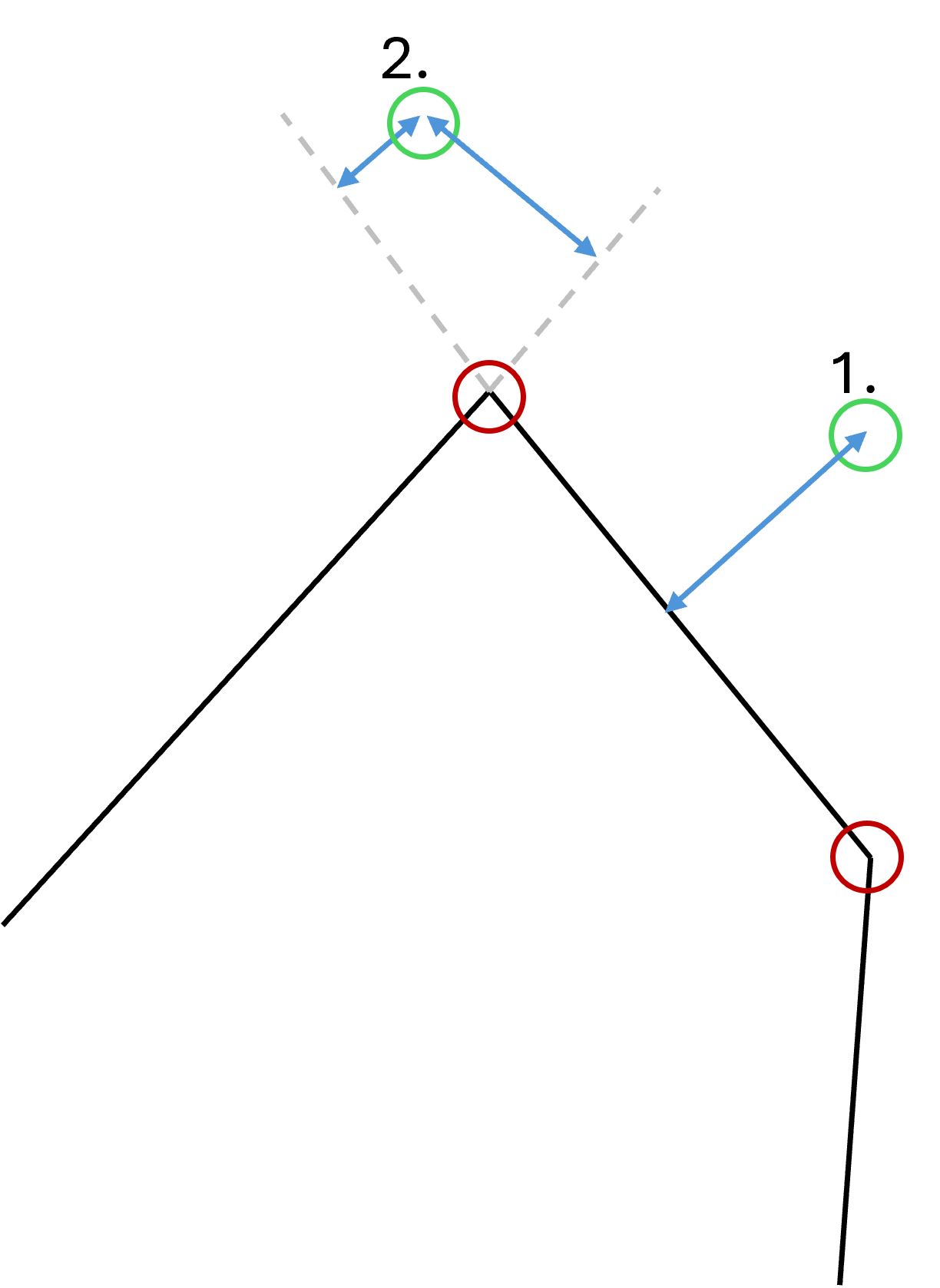
- Black: Convex hull boundary.
- Red: Outermost training data points that form the hull.
- Green: Points for which the distance to the hull is evaluated.
- Blue: Orthogonal distance from a green point to the nearest hull edge.
- Gray: Edge extensions to construct the orthogonal projection for efficient computation.
For the first green point, the orthogonal distance to the nearest edge is shown by the blue segment.
For the second green point, two orthogonal projections to neighboring edges are possible (constructed using the gray extensions). The algorithm takes the larger of the two distances as the result.
|
Note |
|---|
|
The value returned by the hull model is not the shortest Euclidean distance to the hull; it is an orthogonal projection used for fast evaluation and optimization. |
The Configure Convex Hull on Inputs window contains the following elements:
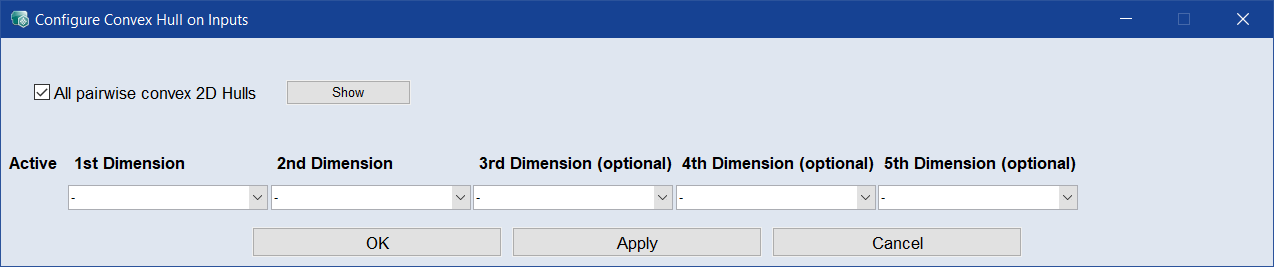
All pairwise convex 2D-Hulls checkbox
If activated (default), 2D hulls for all input pairs are used. The Show button next to the checkbox opens a scatter plot window that shows all pairwise 2D hulls.
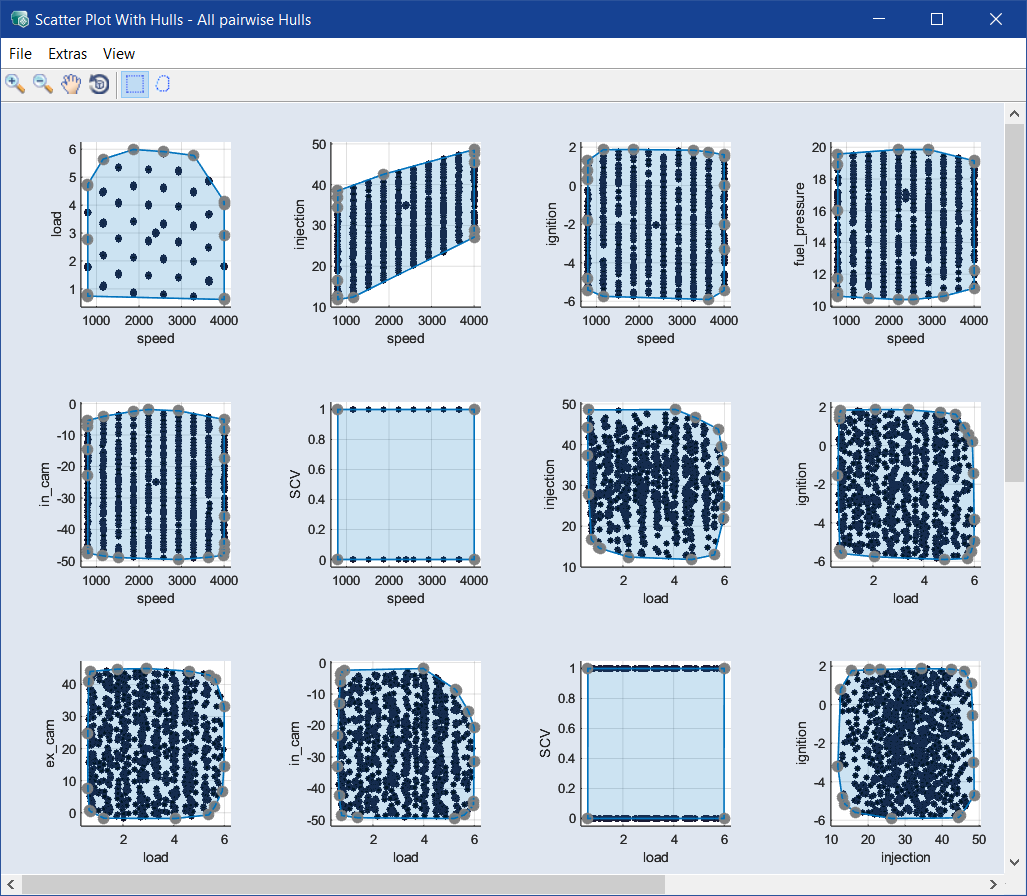
Table area
This area allows the specification of user-defined hulls.
|
Column |
Meaning |
||
|---|---|---|---|
|
Active |
The checkboxes activate/deactivate the hulls. Invisible until the first dimension is selected. |
||
|
1st Dimension |
You must select at least two dimensions to define a hull. A third and/or fourth dimension are optional. Each drop-down list offers all inputs for selection, and a "-" to leave out inputs for the respective dimension.
|
||
|
2nd Dimension |
|||
|
3rd Dimension (optional) |
|||
|
4th Dimension (optional) |
|||
|
5th Dimension (optional) |
|||
|
|
Deletes the respective hull. Invisible until the first dimension is selected. |
||
|
|
Opens a Invisible until the first dimension is selected. |
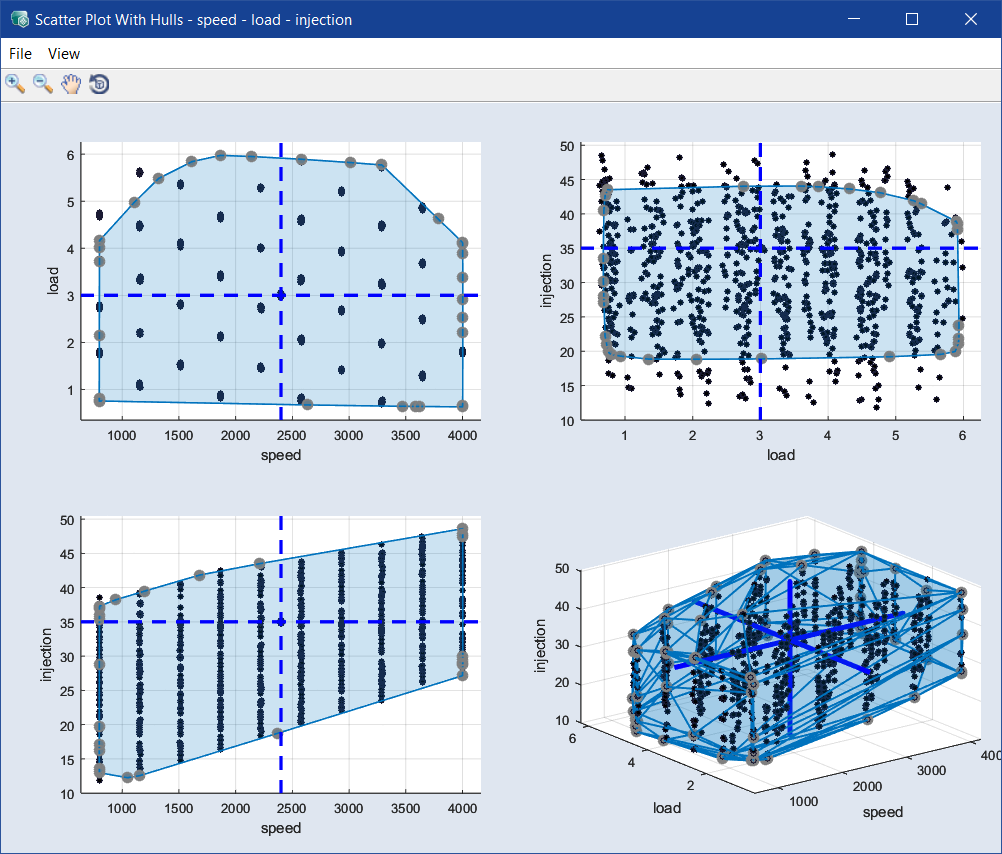
A new empty row appears when the first dimension is selected in a row.
A row disappears if you click its  button, or if you deselect the last input.
 OK
OK
Applies your settings and closes the window.
Apply
Applies your settings, but does not close the window.
Cancel
Discards your settings and closes the window.
See also