Saving and Loading a Configuration
|
Note |
|
This instruction applies to ASCMO-STATIC ExpeDes and ASCMO-DYNAMIC ExpeDes. |
Proceed as follows:
-
To save the current configuration of channels, do the following:
-
In the main window of ASCMO-STATIC ExpeDes or ASCMO-DYNAMIC ExpeDes, do one of the following:
- Select File ® Save Channel Config (*.ini).
- Click on Export.
-
In the file selection window, enter or select path and name of the configuration file to be created.
-
Click on Save.
The current configuration, i.e. the
 content of the table, is saved to the specified file.
-
-
To load a configuration of channels, do the following:
-
In the main window of ASCMO-STATIC ExpeDes or ASCMO-DYNAMIC ExpeDes, open step 1. General Settings.
-
In the General Settings view, click on Import.
-
In the file selection window, enter or select format, path and name of the configuration file you want to load.
You can select files in the following formats: ETAS INCA Variable File (*.lab), MS Excel (*.xls, *.xlsx), Comma separated values (*.csv), or ETAS ASCMO Channel Config File (*.ini).
-
Click on Open.
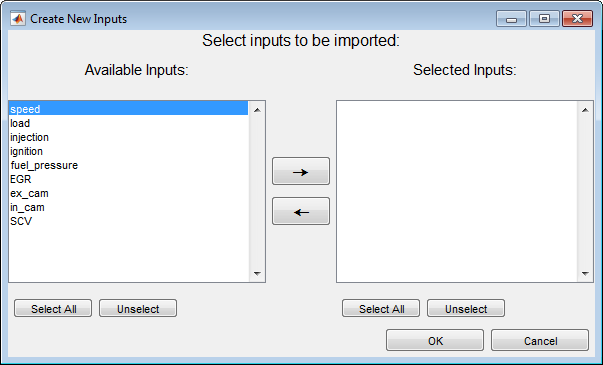
The
"Create New Inputs" window opens. -
In the "Available Inputs" list, select all inputs you want to import, then click on
 .
.The inputs are copied to the "Selected Inputs" list.
-
Click on OK to start the import.
The selected inputs from the file are added to the input configuration table.
-