File Menu
The File menu consists of the following entries:
|
Note |
|---|
|
Only available for ASCMO-MOCA. |
Open...
Load an existing project (). You can select the project in an open file dialog.
Recent Projects
Opens a list of recently edited projects.
Save
Saves the current project.
If the project has not yet been saved, an open file dialog opens where you can select the file name () and the file path.
Save As
Save the current project under a different name and/or location. You can specify the name and file path in an open file dialog.
Export Function as FMU...
Exports your created function as an FMU file. You can specify the name and file path in an open file dialog.
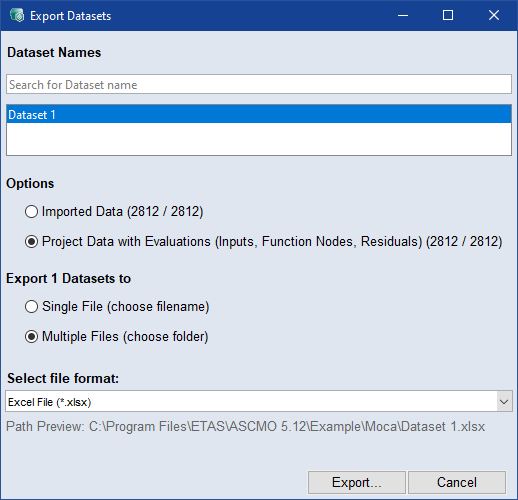
Export Datasets
Opens the  Export Datasets window, where you can specify the settings for the export to *.xls / *.xlsx, *.csv, *.dat, *.mf4, or *.mat.
Open PowerPoint Report Generator
Gets you to the Visualization Step and opens the Report Generator window, where you can create PowePoint reports filled with visualization elements.
Options
Opens the "Options" window.
Close
Closes the current project and returns to the start window.
Exit
Closes the current project and exits completely.