"Select a validation rule" Window
This window is opened with the Configure Validation Rule option in the Validation Rules menu of the ASCMO-Cycle Generator main window.
The  "Select a validation rule" window contains the following elements:
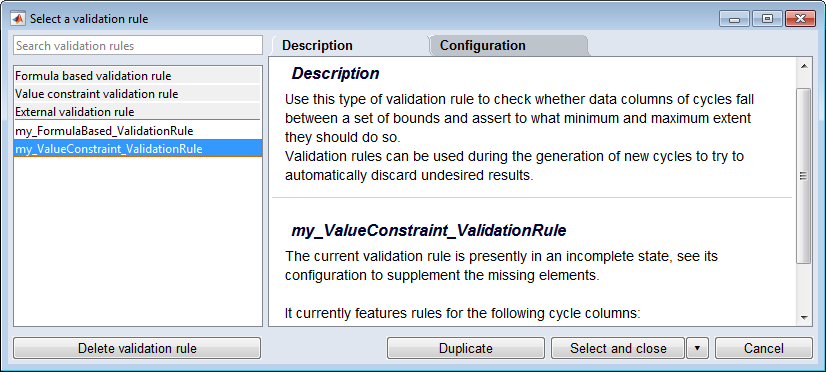
validation rules list
This list shows the validation rule templates (Formula based validation rule, Value constrained validation rule, and External Validation Rule) and the validation rules in your project.
|
Note |
|---|
|
The External Conversion RuleExternal Validation Rule template can be used only in the P-code version of ETAS ASCMO (ASCMO_SDK license). |
You can filter the list by entering a search term in the "Search validation rules" field at the top of the list.
"Description" tab
This tab contains a description of the selected validation rule and its configuration.
|
Note |
|---|
|
Read the information in this tab carefully. |
"Configuration" tab
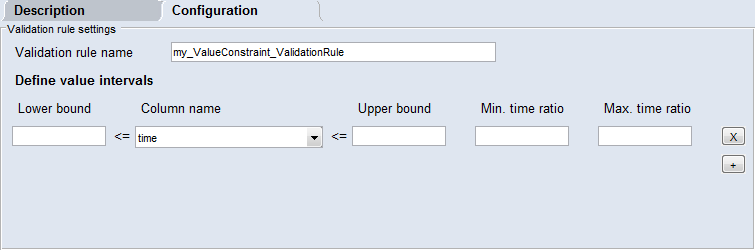
This tab contains all properties that can be set for the selected validation rule.
|
Note |
|---|
|
You cannot edit the properties of the validation rule templates (Formula based validation rule, Value constrained validation rule, and External Validation Rule). Use the Duplicate button to create an empty copy of a template, then edit the copy. |
The content of the tab depends on the type of the selected validation rule.
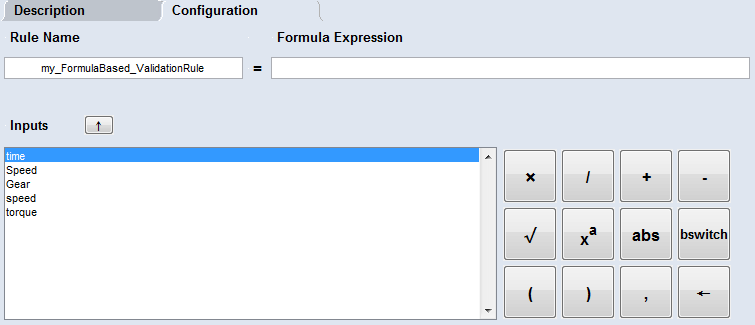
 button inserts the selected input into the formula expression.




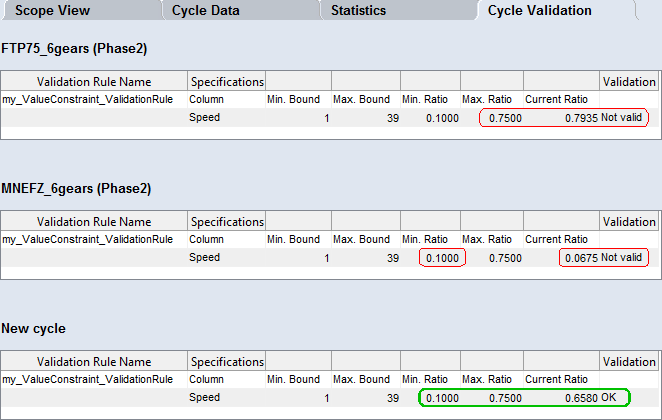
Value constrained validation rule
 button
 button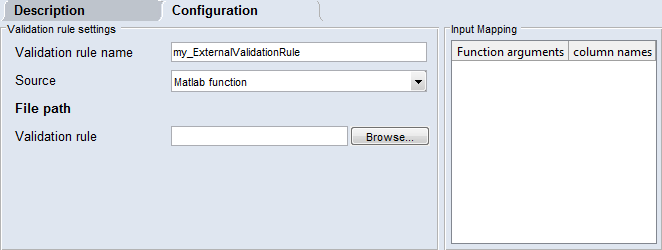
 Delete validation rule
Deletes the selected validation rule. You can delete only one validation rule at a time.
Duplicate
Creates a copy of the selected validation rule or validation rule template.
The copy of a template is empty, the copy of an existing validation rule contains all settings of the original.
Select and close
This button selects the currently edited validation rule and closes the "Select a validation rule" window.
Cancel
Discards your settings and closes the window.
See also