ASCET Links: Examples
This topic contains examples for ASCET links used for the following tasks:
- Accessing a folder
- Accessing a component
- Accessing a component in a specific database/workspace
- Accessing an element (no particular project context)
- Accessing an element in the context of a particular project
- Accessing a method and its local elements
- Accessing code parts in an ESDL or C code component
- Accessing graphical objects in a block diagram
- Accessing states, junctions and actions/conditions (in the state diagram) in a state machine
- Accessing cells in Boolean and conditional tables
- Accessing data and implementations
- Accessing events and mappings in an AUTOSAR SWC
- Accessing objects in the project editor
A. Accessing a Folder
In the Tutorial database, select the folder Control in the folder ETAS_SystemLib/Transferfunction:
- ascet://$DATABASE$/Tutorial?ETAS_SystemLib/Transferfunction/Control
- ascet://d:/ETASData/ASCET6.4/Database/Tutorial?ETAS_SystemLib/Transferfunction/Control
 Result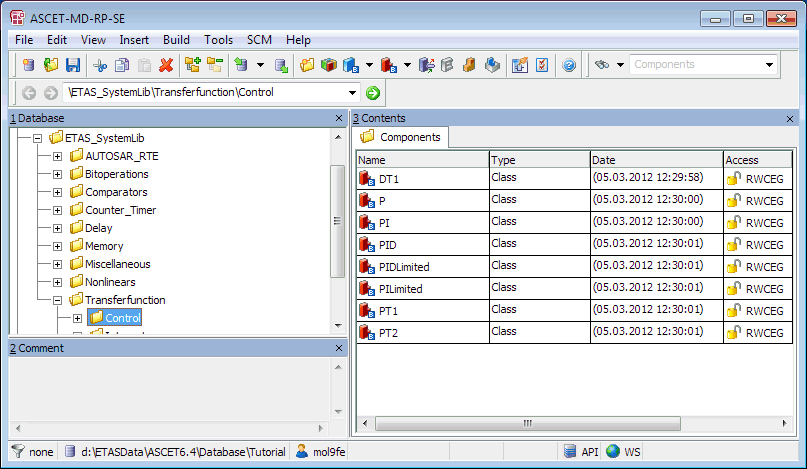
B. Accessing a Component
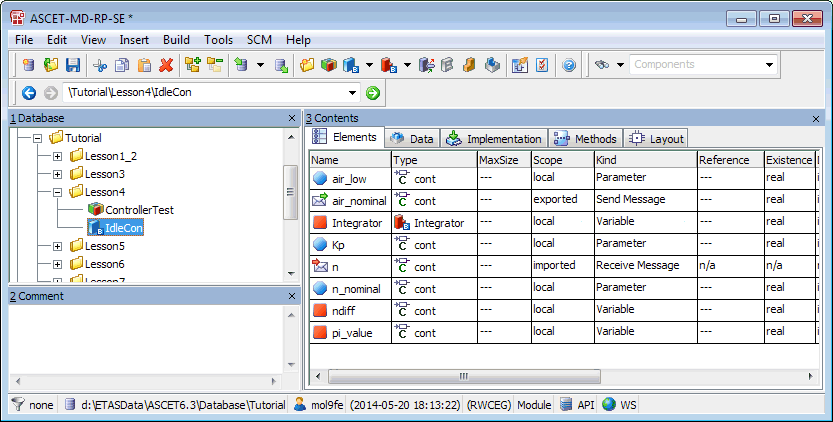
Select the module IdleCon in the folder Tutorial/Lesson4:
ascet://$DATABASE$/Tutorial?Tutorial/Lesson4/IdleCon
C. Accessing a Component in a Specific Database/Workspace
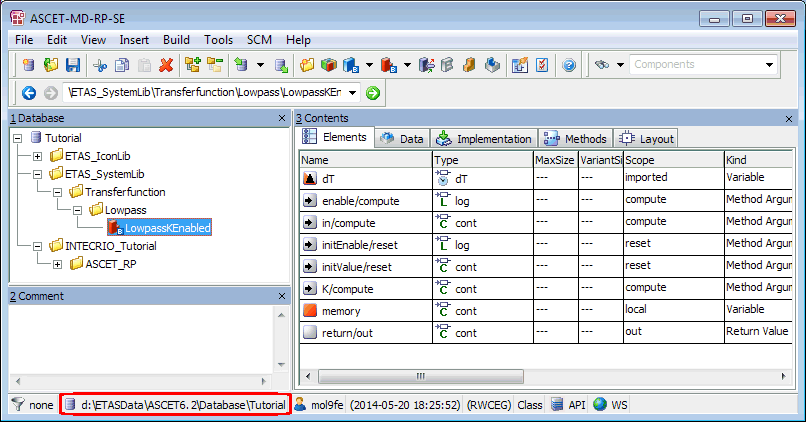
Select the class LowpassKEnabled in the folder ETAS_SystemLib/Transferfunction/Lowpass. Use the database stored in d:\ETASData\ASCET6.4\Database\Tutorial.
ascet://d:/ETASData/ASCET6.4/Database/Tutorial?ETAS_SystemLib/Transferfunction/Lowpass/LowpassKEnabled
D. Accessing an Element (no Particular Project Context)
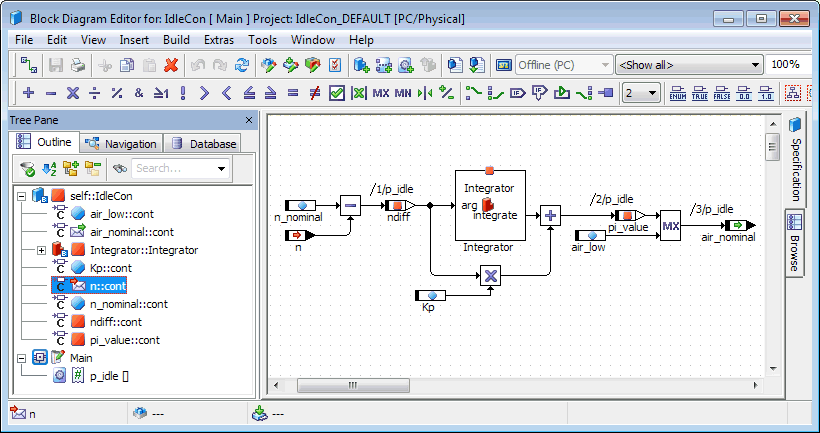
Select the message n in the "Outline" tab of the component editor for the module IdleCon:
ascet://Tutorial/Lesson4/IdleCon/element=n
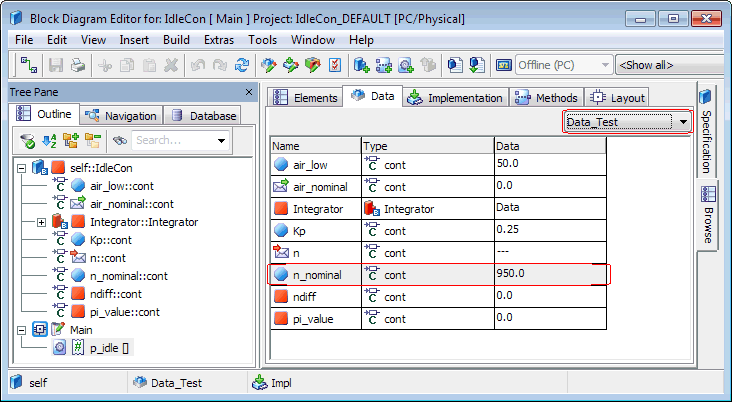
Select the parameter n_nominal in the Browse view, "Data" tab, of the component editor for IdleCon. Use the data set Data_Test.
ascet://Tutorial/Lesson4/IdleCon/data=Data_Test/element=n_nominal&location="Browse"
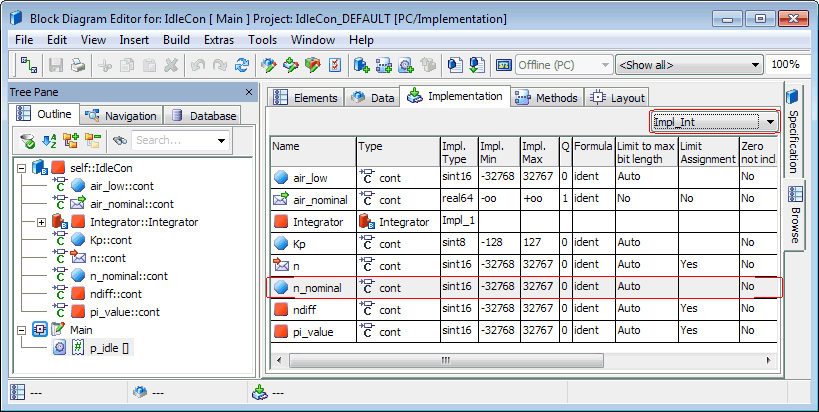
Select the parameter n_nominal in the Browse view, "Implementation" tab, of the component editor for IdleCon. Use the implementation set Impl_Int.
ascet://Tutorial/Lesson4/IdleCon/implementation=Impl_Int/element=n_nominal&location="Browse"
E. Accessing an Element in the Context of a Particular Project
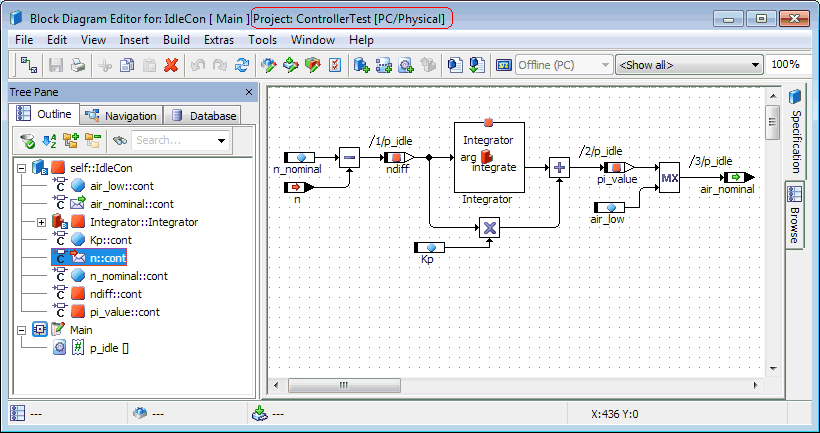
Select the message n in the "Outline" tab of the component editor for the module IdleCon, in the context of the parent project ControllerTest:
ascet://Tutorial/Lesson4/IdleCon/element=n&project=Tutorial/Lesson4/ControllerTest
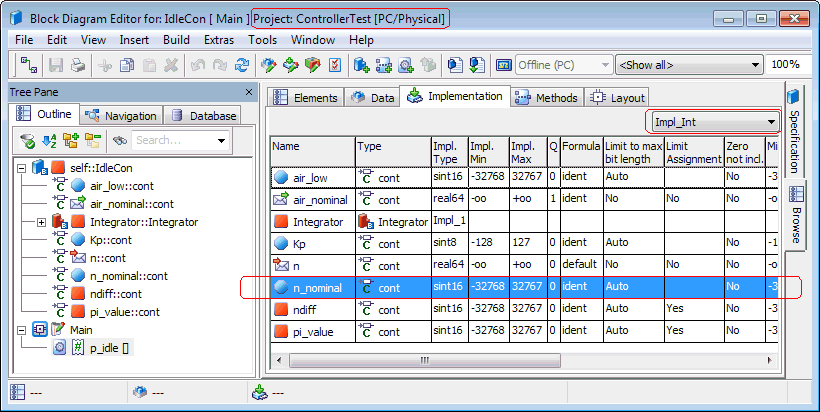
Select the parameter n_nominal in the "Browse" view, "Implementation" tab, of the component editor for IdleCon. Use the implementation set Impl_Int and the context of the parent project ControllerTest:
ascet://Tutorial/Lesson4/IdleCon/implementation=Impl_Int/element=n_nominal&location="Browse"&project=Tutorial/Lesson4/ControllerTest
F. Accessing a Method and its Local Elements
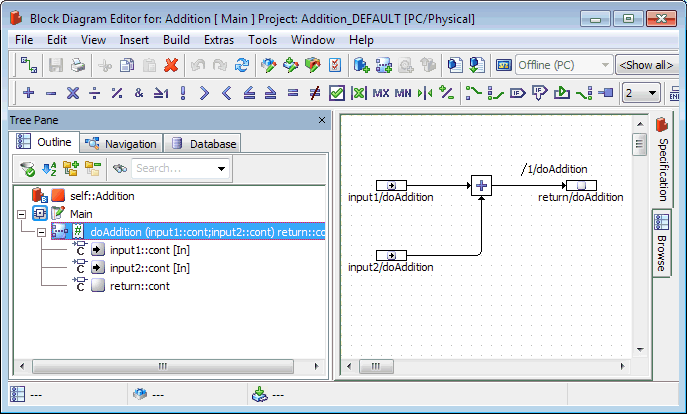
Select the method doAddition in the class Addition:
ascet://Tutorial/Lesson1_2/Addition/diagram=Main/signature=doAddition
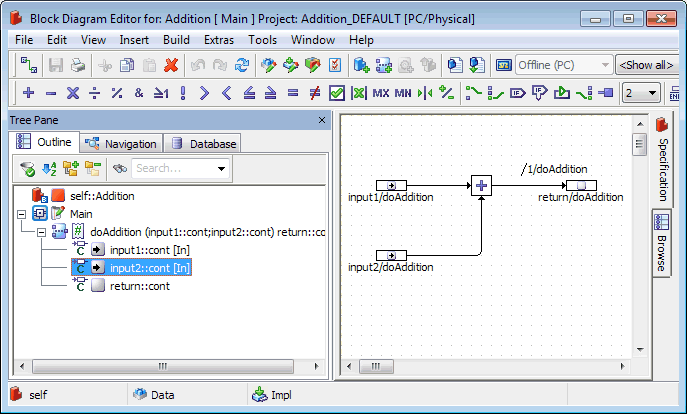
Select the argument input2 in the method doAddition. Use the database already open in ASCET.
ascet://Tutorial/Lesson1_2/Addition/diagram=Main/signature=doAddition/element=input2
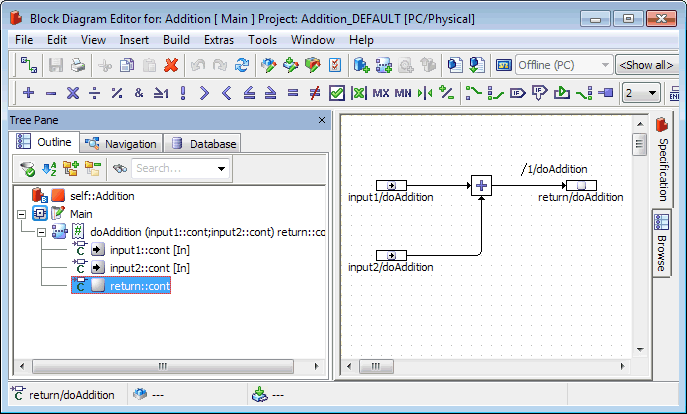
Select the return value of the method doAddition. Use the database already open in ASCET.
ascet://Tutorial/Lesson1_2/Addition/diagram=Main/signature=doAddition/element=return
G. Accessing Code Parts in an ESDL or C code Component
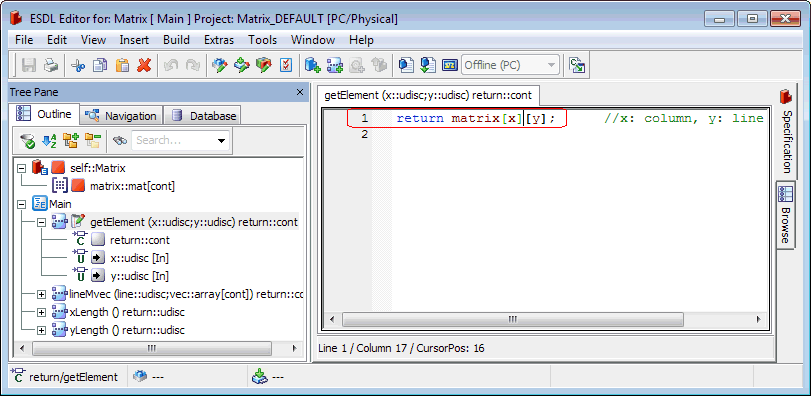
Set the cursor to a specific position in the code of the getElement method in the class Matrix.
ascet://Classes/Matrix/diagram=Main/signature=getElement/start=1@17/end=1@17
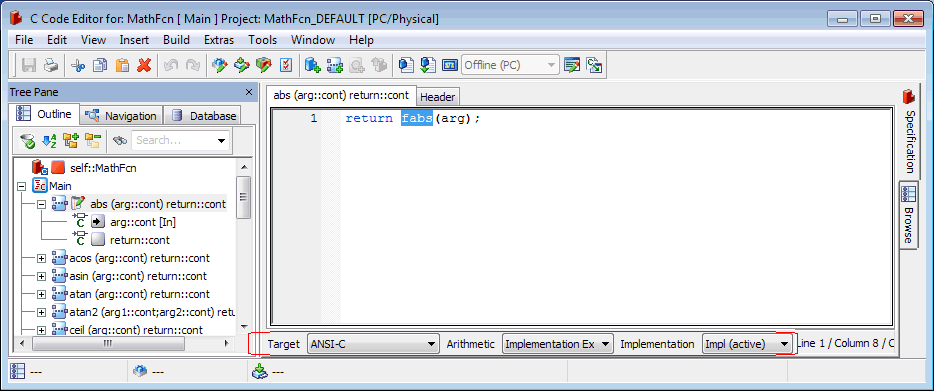
Select a piece of code from the abs method in the class MathFcn, for the ANSI-C target, Implementation Experiment arithmetic, and Impl implementation.
ascet://Classes/MathFcn/diagram=Main/signature=abs/start=1@8/end=1@12&implementation=Impl&target=G_ANSI&generator=Implementation
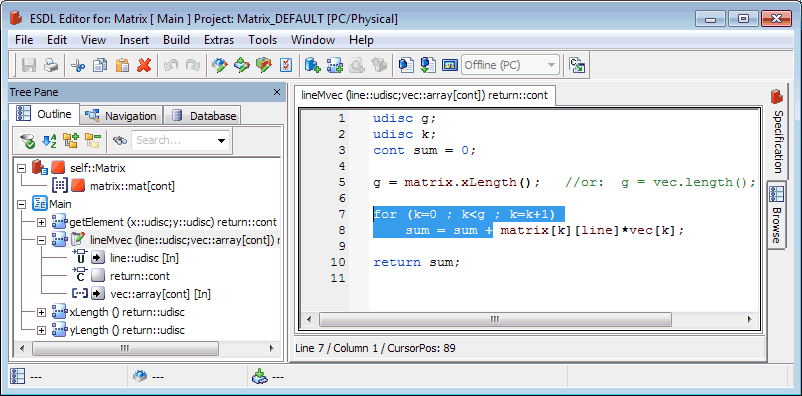
Select a piece of code from lines 7-8 of the lineMvec method in the class Matrix.
ascet://Classes/Matrix/diagram=Main/signature=lineMvec/start=7@1/end=8@16
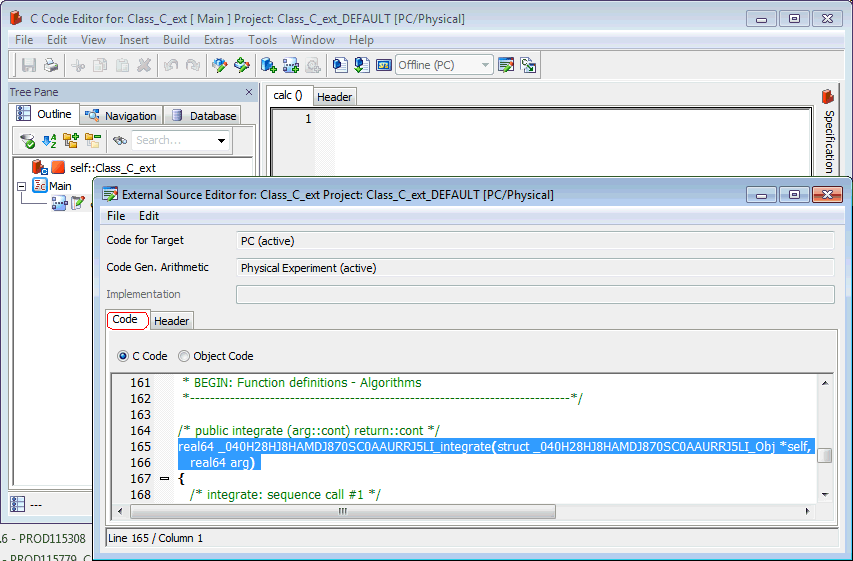
Select the lines 165 and 166 in the external C source code of class Class_C_ext (target PC, arithmetic Physical Experiment, no particular project context).
ascet://externalCode/Class_C_ext/codeSource=externalCode/start=165@1/end=167@1&target=PC&generator=Physical
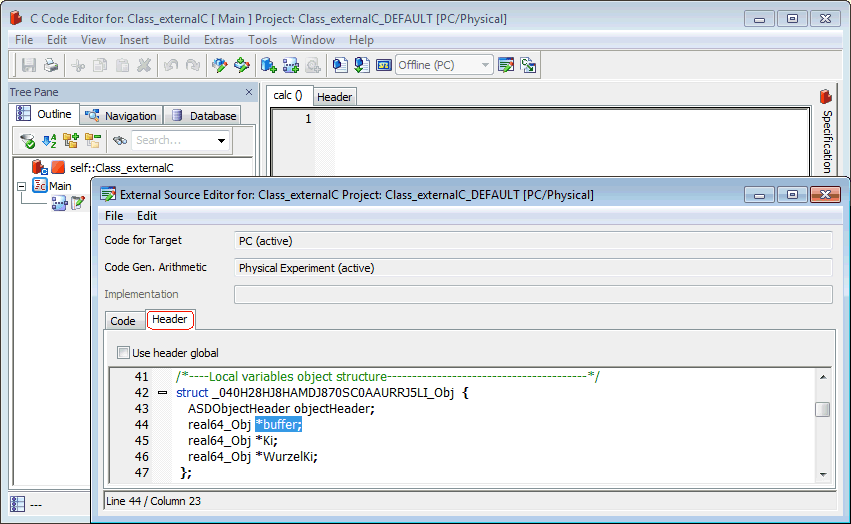
Select a piece of code from line 44 in the external header code of class Class_externalC (target PC, arithmetic Physical Experiment, no particular project context).
ascet://externalCode/Class_externalC/codeSource=externalHeader/start=44@15/end=44@23&target=PC&generator=Physical
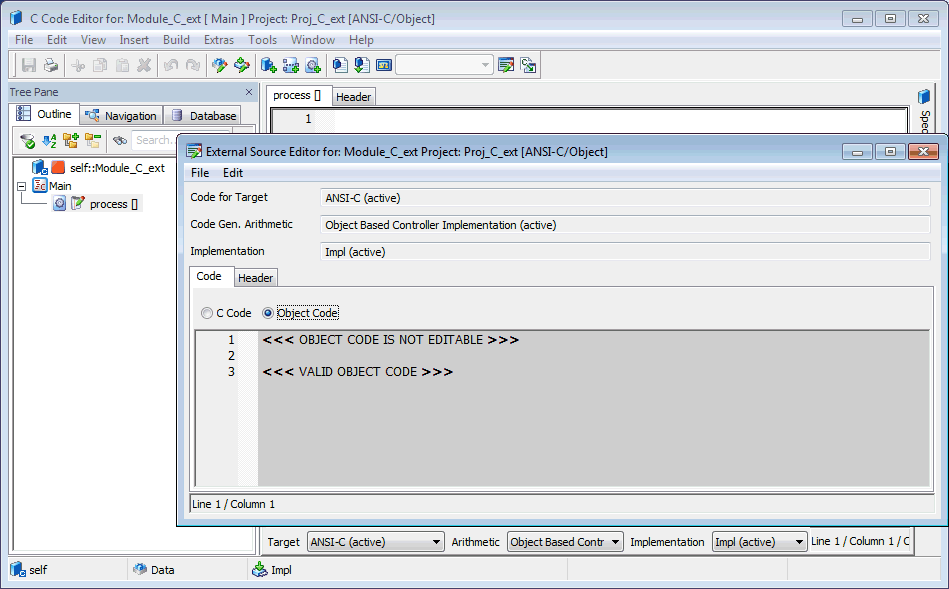
Open the External Source Editor for the external object file in module Module_C_ext in the context of the parent project Proj_C_ext
ascet://externalCode/Module_C_ext/codeSource=externalCode&implementation=Impl&data=Data&target=G_ANSI&generator=Object&project=externalCode/Proj_C_ext
H. Accessing Graphical Objects and Sequence Calls in a Block Diagram
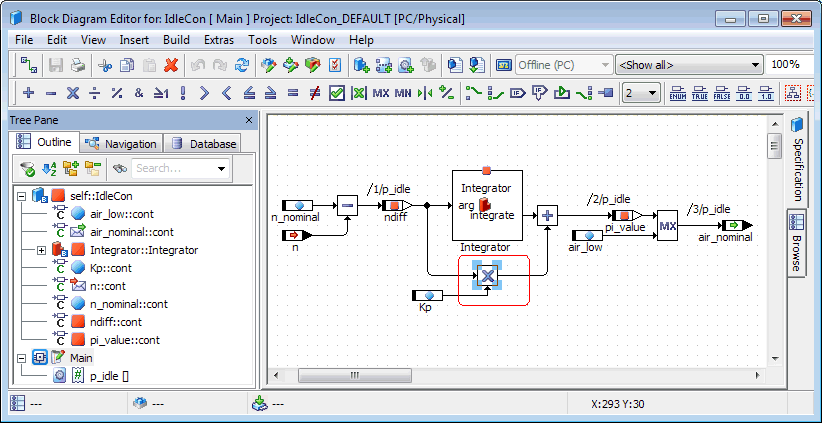
Select an operator in the block diagram of IdleCon. Use the first diagram.
ascet://Tutorial/Lesson4/IdleCon/diagram=Main/goid=19
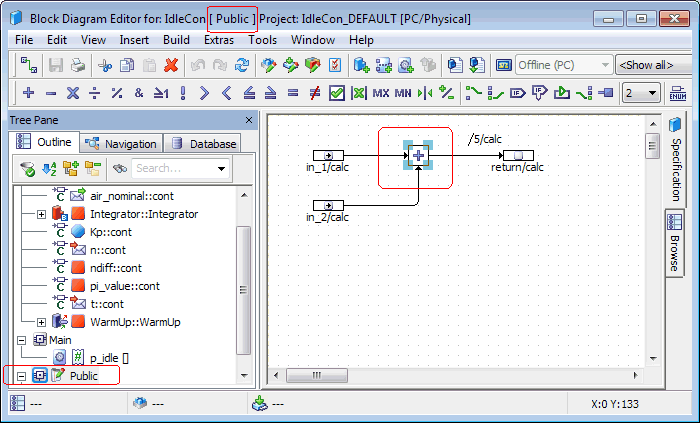
Select an operator in the diagram Public of IdleCon.
ascet://Tutorial/Lesson8/IdleCon/diagram=Public/goid=9
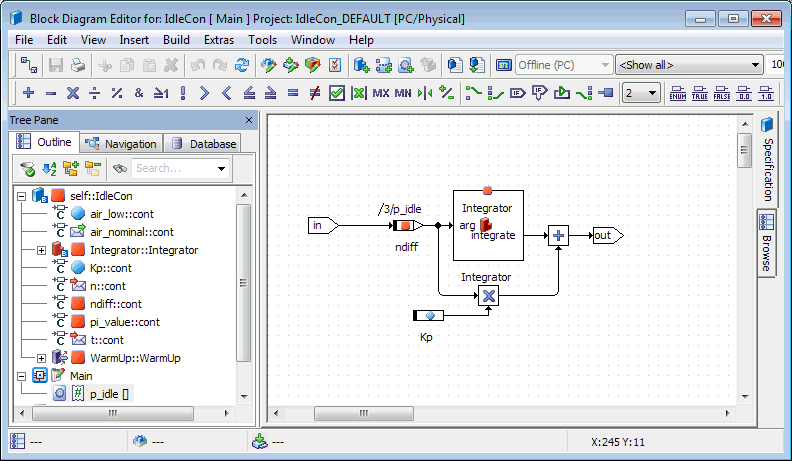
Open the graphical hierarchy in the first diagram of IdleCon.
ascet://Tutorial/Lesson8/IdleCon/hierarchy="OuterHierarchy"
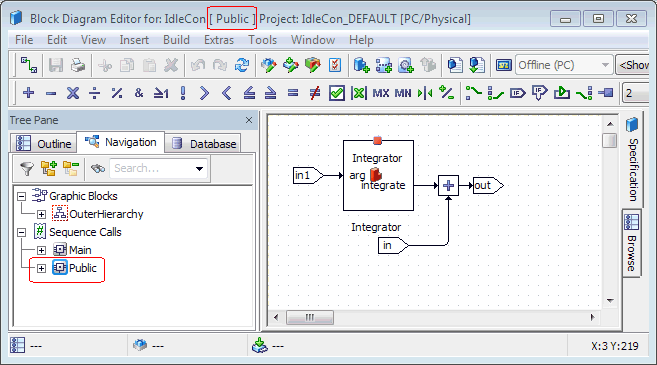
Open the second-level hierarchy InnerHierarchy in the diagram Public of IdleCon. In addition, open the "Navigation" pane.
ascet://Tutorial/Lesson8/IdleCon/diagram=Public/hierarchy="OuterHierarchy"/hierarchy="InnerHierarchy"&location="Navigation"
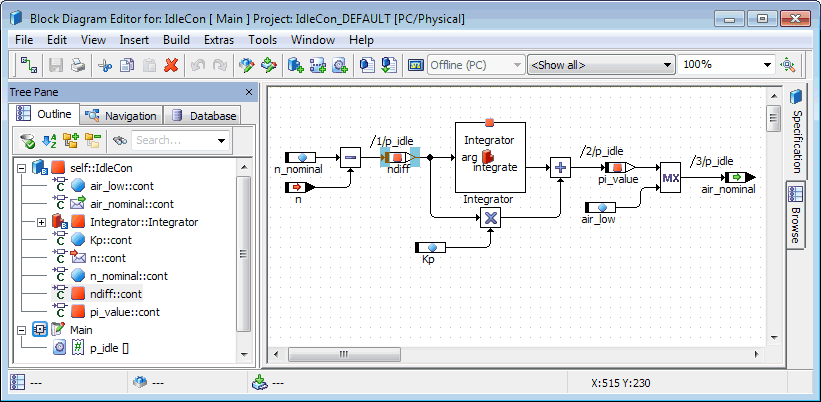
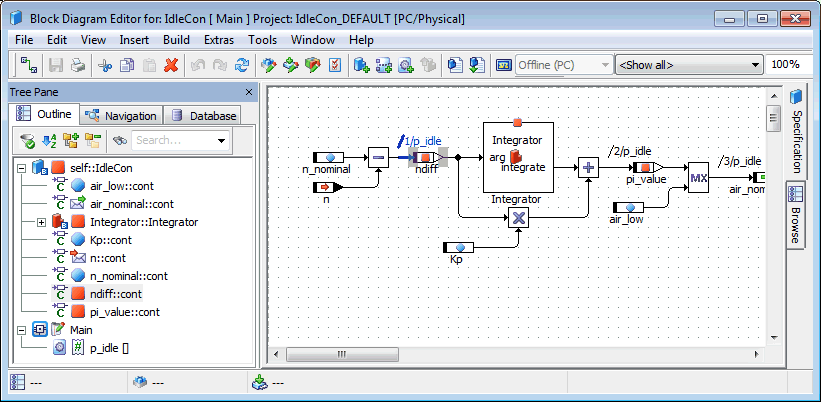
Select the first sequence call of the process p_idle in the first diagram of IdleCon.
ascet://Tutorial/Lesson4/IdleCon/diagram=Main/signature=p_idle/call=1
Select the port that belongs to the first sequence call of the process p_idle in the first diagram of IdleCon.
ascet://Tutorial/Lesson4/IdleCon/diagram=Main/goid=16/signature=set
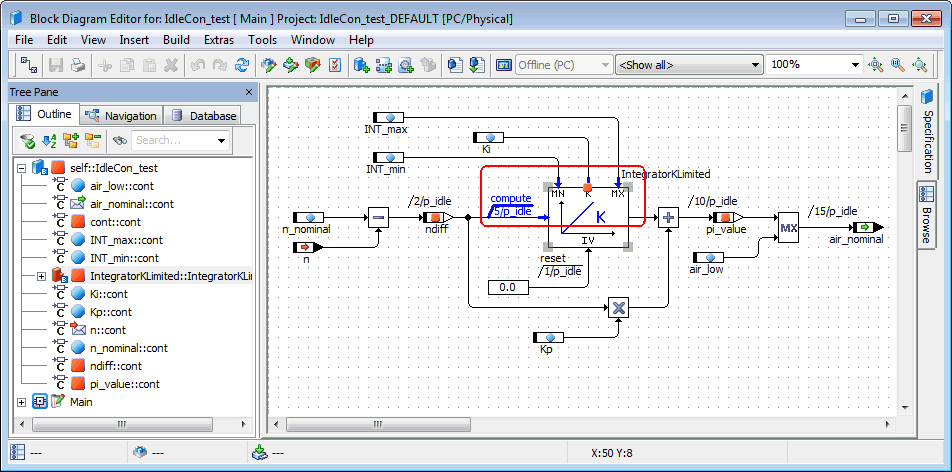
Select the port of method compute in the IntegratorKLimited class used in IdleCon_test.
ascet://Tutorial/Lesson4/IdleCon_test/diagram=Main/goid=141/signature=compute
I. Accessing States, Junctions and Actions/Conditions (in the State Diagram) in a State Machine
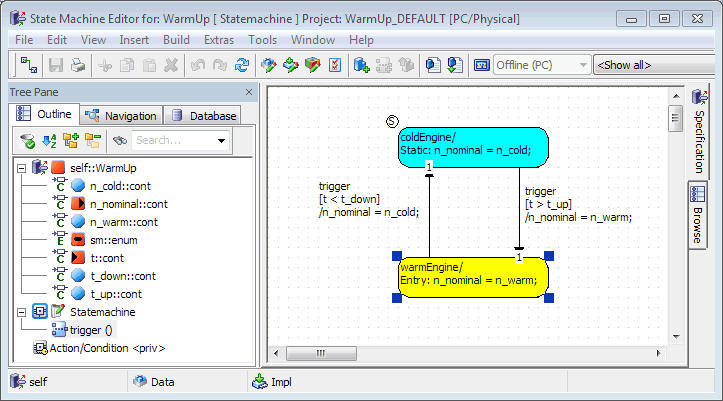
Select the lower state in the state machine WarmUp.
ascet://$DATABASE$/Tutorial?Tutorial/Lesson8/WarmUp/diagram=Statemachine/goid=1
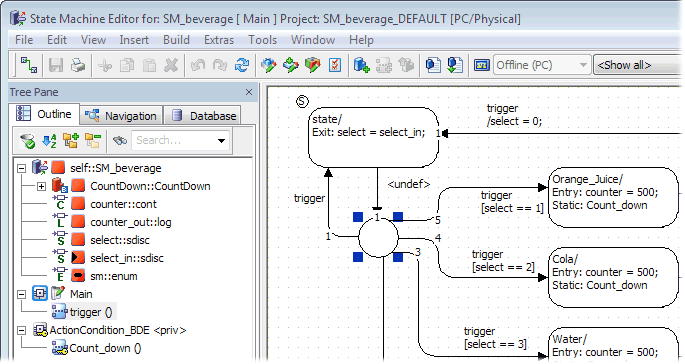
Select a junction in the state machine SM_beverage.
ascet://$DATABASE$/Tutorial?statemachines/SM_beverage/diagram=Main/goid=6
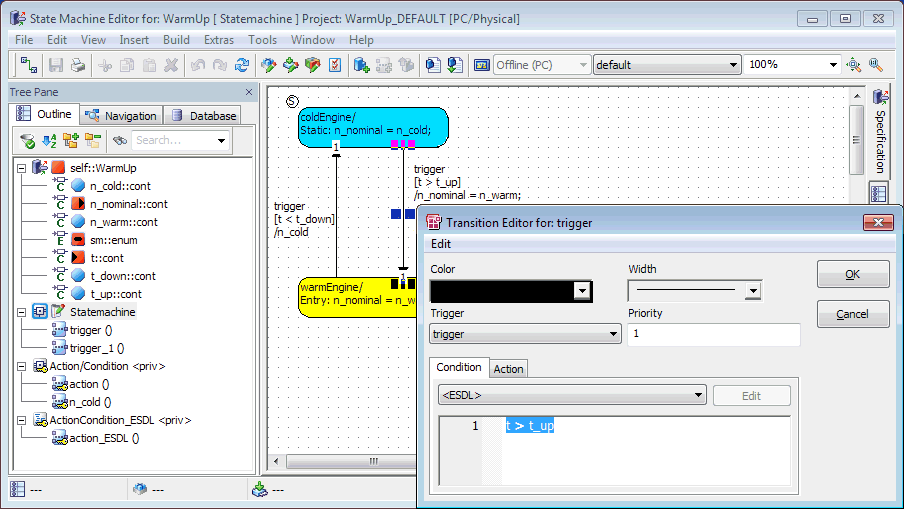
In the state machine WarmUp, open the transition editor for the transition from coldEngine to warmEngine and select the code of the condition.
ascet://$DATABASE$/Tutorial?Tutorial/Lesson8/WarmUp/diagram=Statemachine/goid=7/transition=Condition/start=1@1/end=1@9
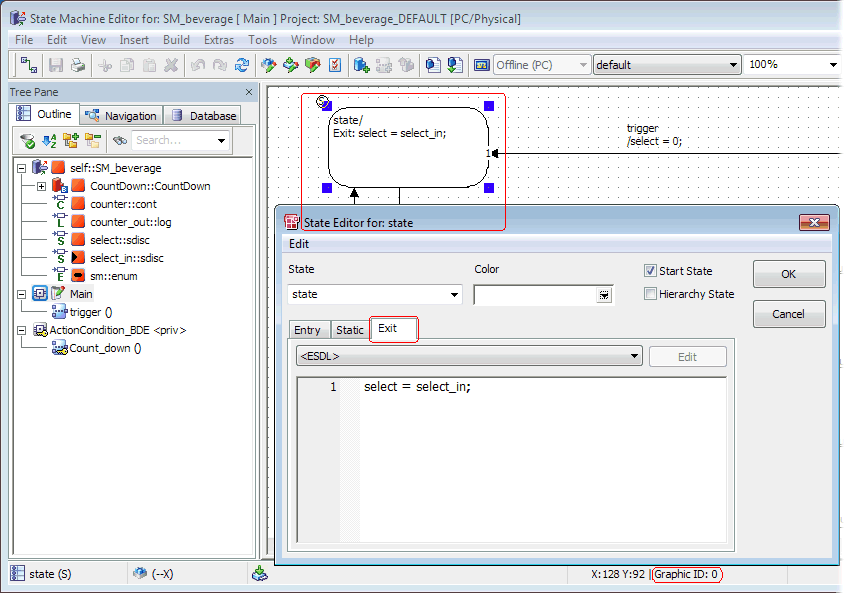
In the state machine SM_beverage, open the state editor for the start state and select the Exit tab.
ascet://$DATABASE$/Tutorial?statemachines/SM_beverage/diagram=Main/goid=0/state=Exit
J. Accessing Cells in Boolean and Conditional Tables
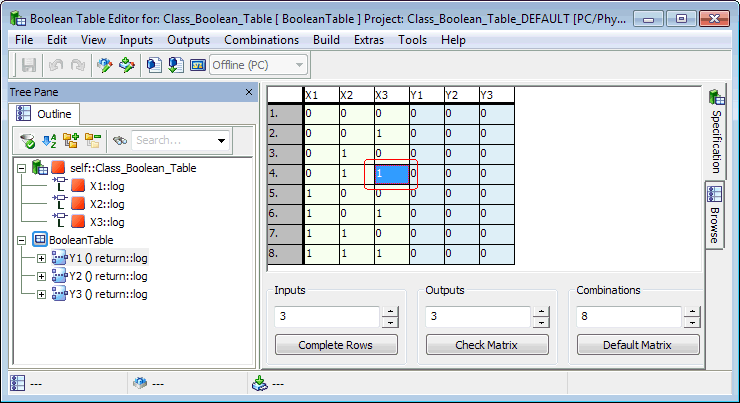
Select the cell in the third column, fourth row, of the Boolean table Class_Boolean_Table.
Note
The column with the row numbers is counted as x = 1.
ascet://$DATABASE$/Tutorial?tables/Boolean/Class_Boolean_Table/x=4/y=4
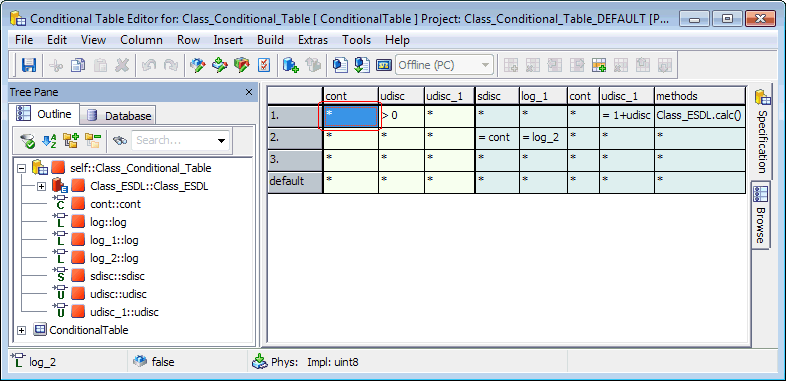
Select the top-left cell in the conditional table Class_Conditional_Table.
Note
The column with the row numbers is counted as x = 1.
ascet://$DATABASE$/Tutorial?tables/Conditional/Class_Conditional_Table/x=2/y=1
K. Accessing Data and Implementations
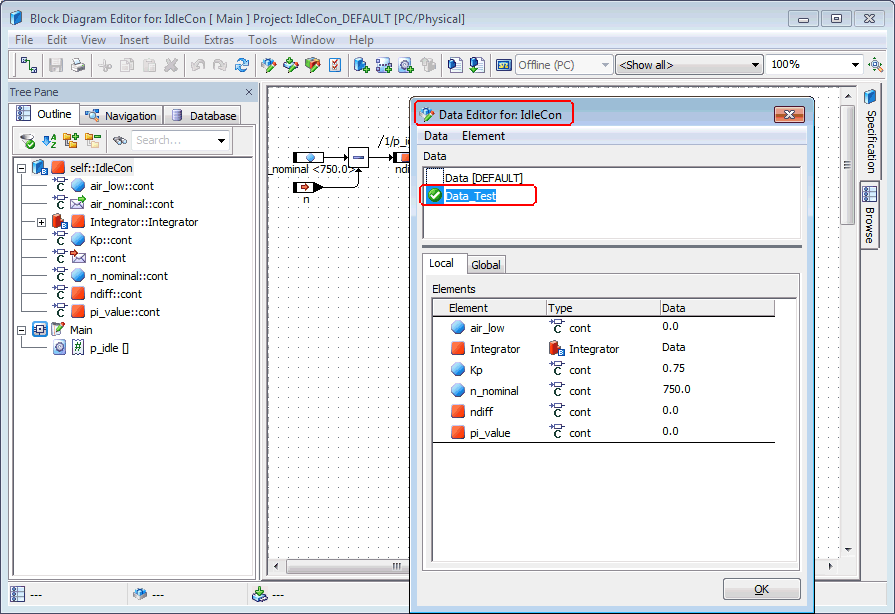
Open the dataset editor for IdleCon and select the dataset Data_Test.
ascet://Tutorial/Lesson4/IdleCon/element=self&action=editData&data=Data_Test
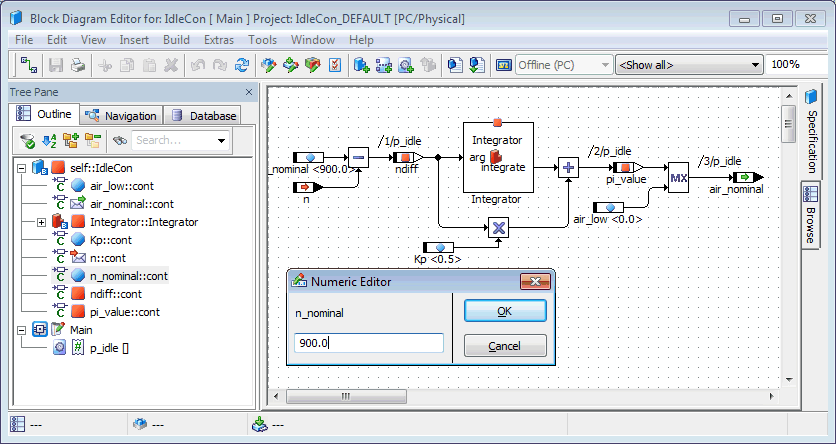
Open the data editor for the parameter n_nominal in IdleCon. Show the value assigned to n_nominal in the data set Data.
ascet://Tutorial/Lesson4/IdleCon/element=n_nominal&action=editData&data=Data
Open the implementation editor for IdleCon and select the default implementation.
ascet://Tutorial/Lesson4/IdleCon/element=self&action=editImplementation
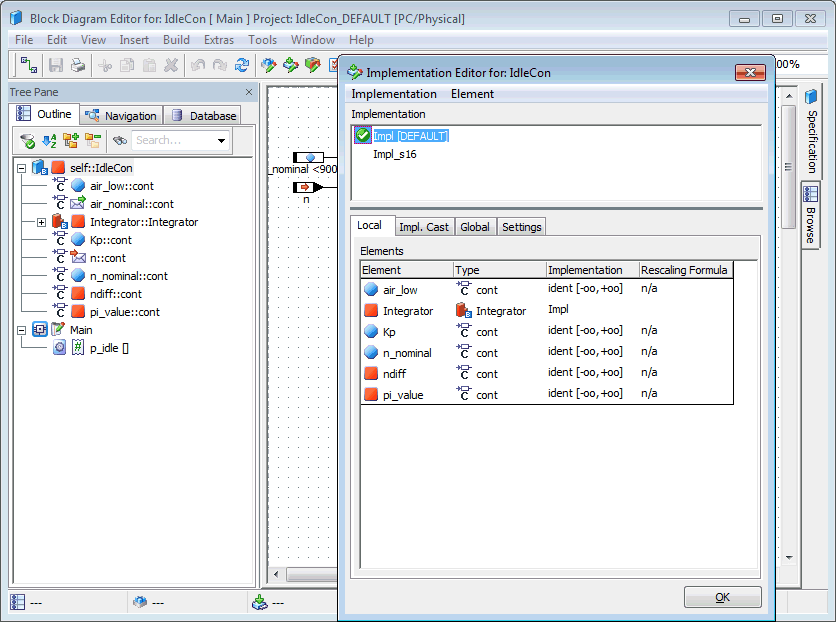
Open the implementation editor for the parameter n_nominal in IdleCon. Show the implementation assigned to n_nominal in the component implementation Impl_s16.
ascet://Tutorial/Lesson4/IdleCon/element=n_nominal&action=editImplementation&implementation=Impl_s16
L. Accessing Events and Mappings in an AUTOSAR SWC
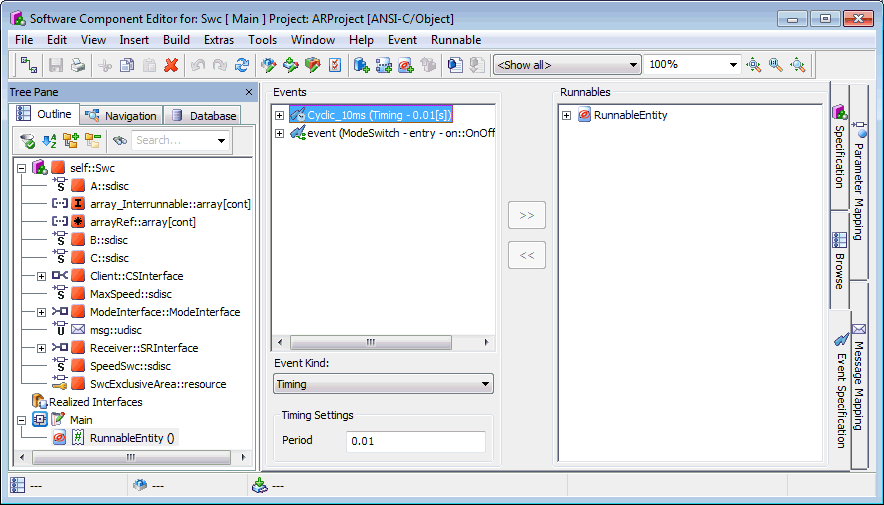
Open the software component editor for SWC and select the timing event Cyclic_10ms in the Event Specification view. Use the context of the parent project ARProject.
ascet://Tutorial/AS_IntBehavior/Swc/event=Cyclic_10ms&project=Tutorial/AS_IntBehavior/ARProject
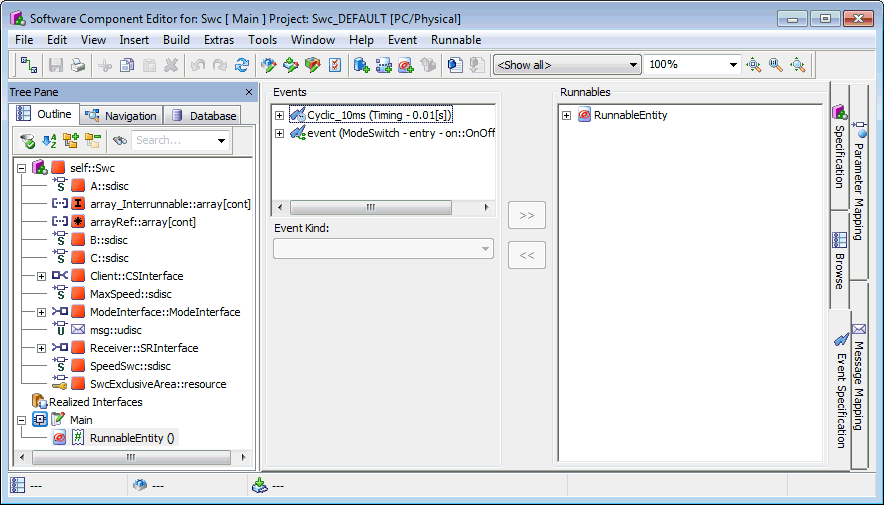
Open the software component editor for SWC (without project context) and show the Event Specification view, but select no event.
ascet://Tutorial/AS_IntBehavior/Swc/event=
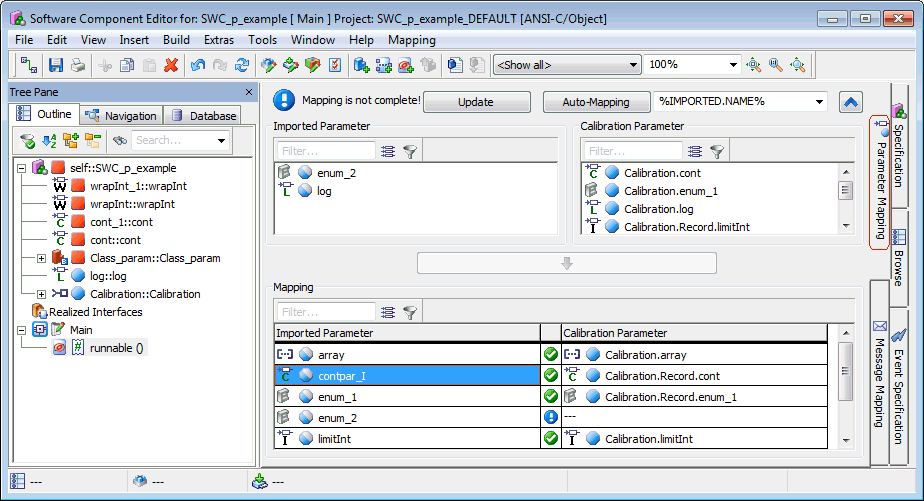
Open the software component editor for SWC_p_example (without project context) and select the entry for the parameter contpar_I in the mapping table of the "Parameter Mapping" view.
ascet://Mapping/SWC_p_example/mapping=parameter/sourceName=contpar_I
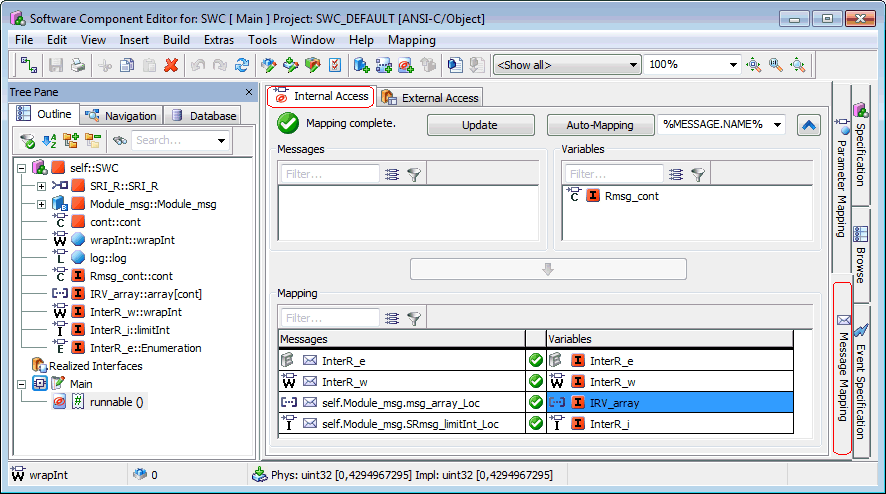
Open the software component editor for SWC_p_example (without project context) and select the entry for the interrunnable variable IRV_array in the mapping table of the "Internal Access" tab in the "Message Mapping" view.
ascet://Mapping/SWC/mapping=variableInternal/targetName=IRV_array
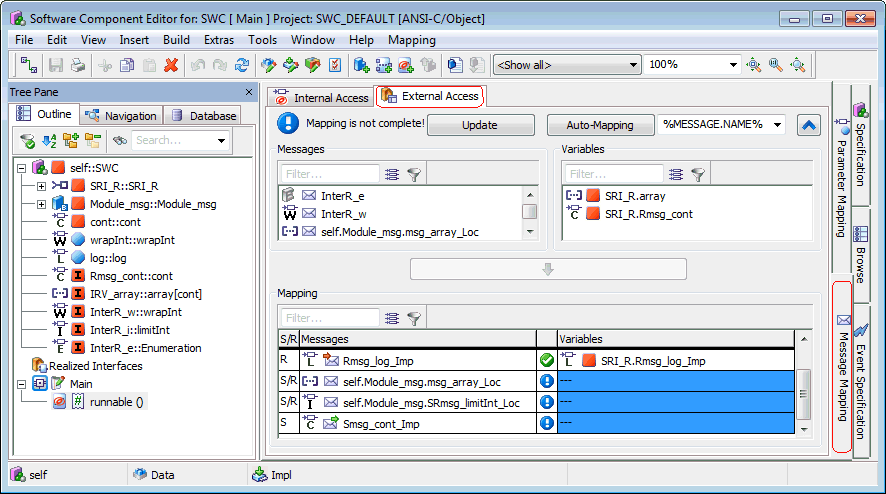
Open the software component editor for SWC (without project context) and select the unmapped entries in the mapping table of the "External Access" tab in the "Message Mapping" view.
ascet://Mapping/SWC/mapping=variableExternal/targetName=
M. Accessing Items in the Project Editor
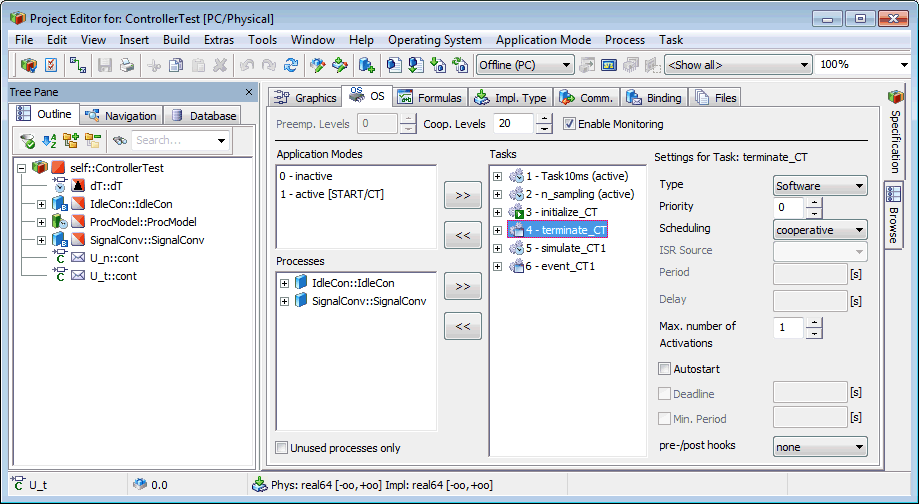
Open the project ControllerTest in the project editor and select the task terminate_CT in the "OS" tab.
ascet://Tutorial/Lesson8/ControllerTest/task=terminate_CT
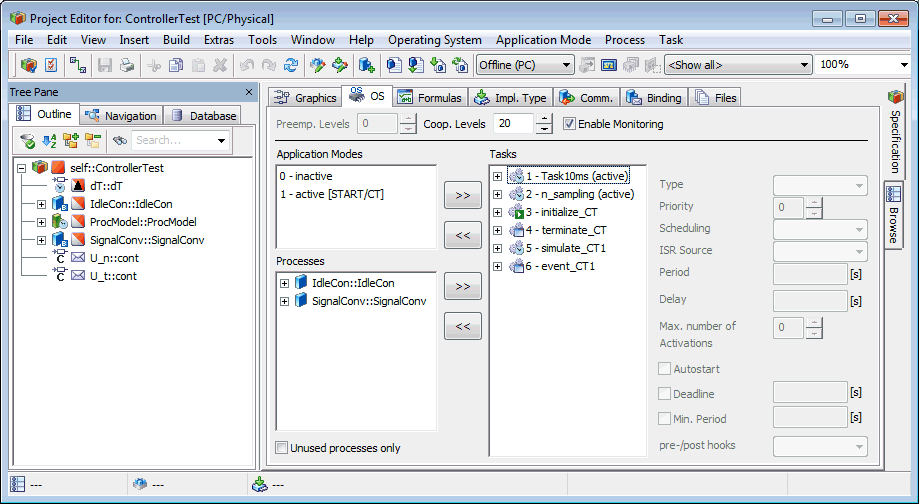
Open ControllerTest in the project editor and show the "OS" tab, but select no task.
ascet://Tutorial/Lesson8/ControllerTest/task=
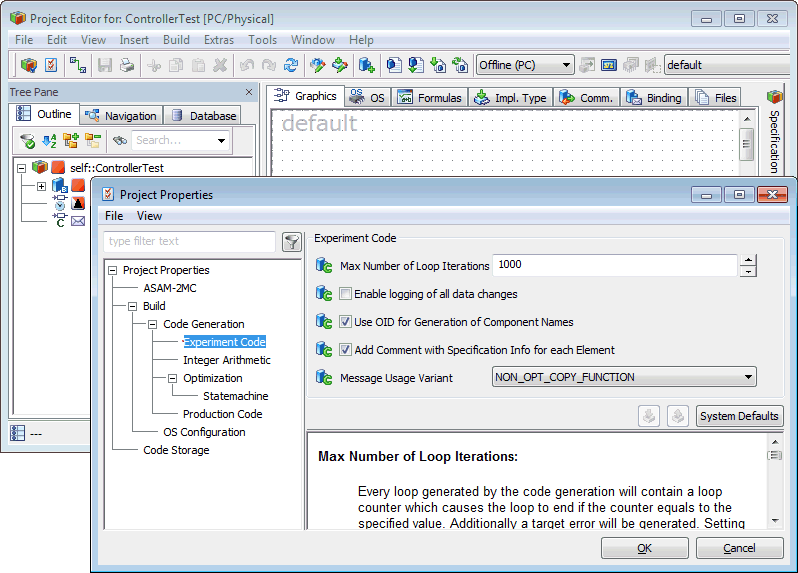
Open ControllerTest in the project editor, then open the "Project Properties" window in the "Experiment Code" node.
ascet://Tutorial/Lesson4/ControllerTest/option=Project Properties\Build\Code Generation\Experiment Code
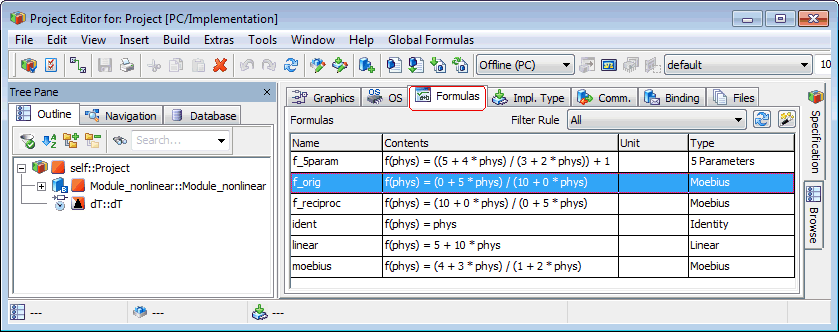
Open Project in the project editor and select the formula f_orig.
ascet://nonlinearFormula/Project/formula=f_orig
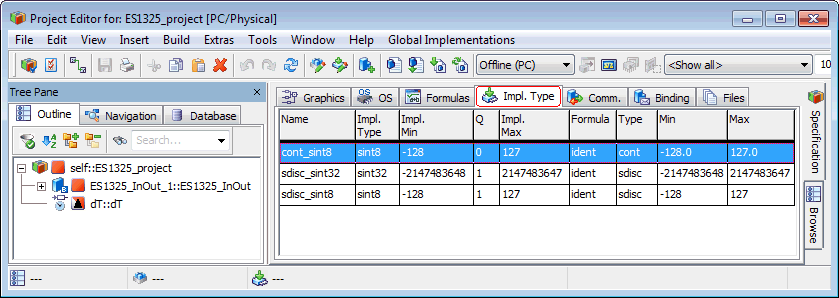
Open ES1325_project in the project editor and select the implementation type cont_sint8.
ascet://RTIOTutorial/ES1325/ES1325_project/impltype=cont_sint8
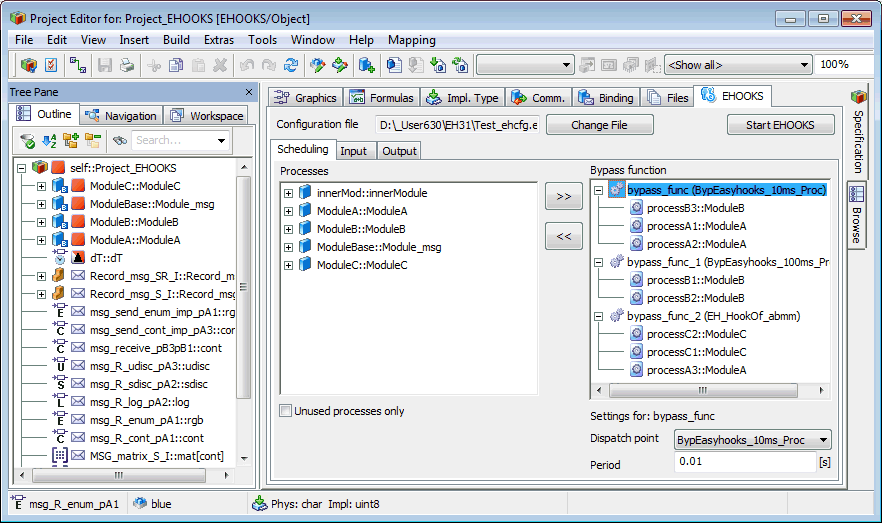
Open Project_EHOOKS in the project editor and select the bypass function bypass_func.
ascet://SE/EHOOKS/Project_EHOOKS/scheduling=bypass_func
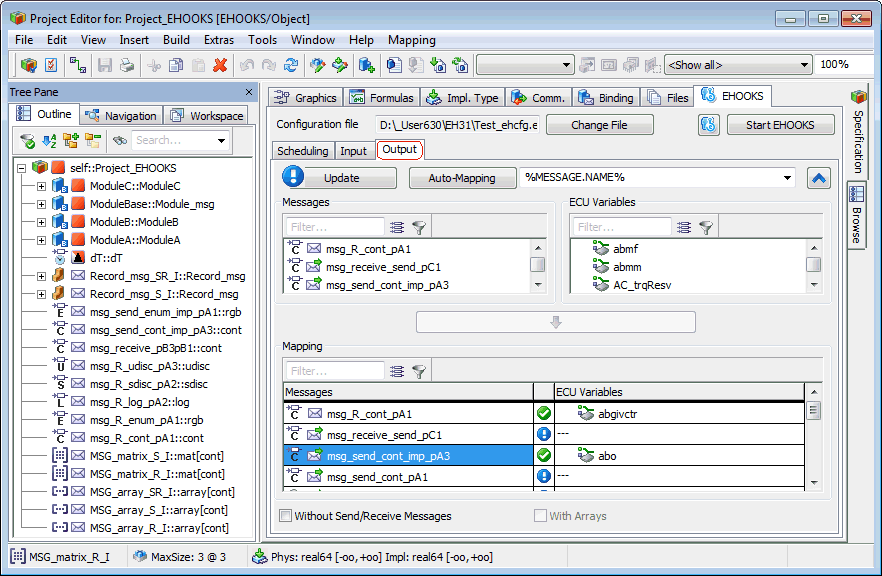
Open Project_EHOOKS in the project editor and select the entry for message msg_send_cont_imp_pA3 in the Output mapping table.
ascet://SE/EHOOKS_mapping/Project_EHOOKS/mapping=Output/sourceName=msg_send_cont_imp_pA3