Scaling Measurement Channels
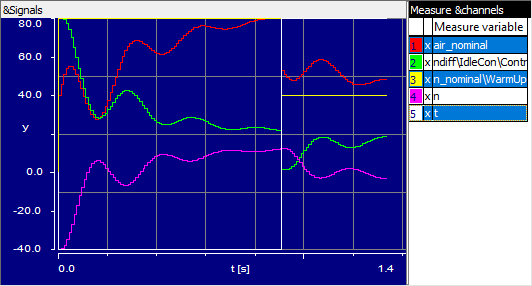
The following options are used to scale the channels, the measurement can be running or paused. Automatic scaling uses the current window content to compute the adjustment. You can select one channel, all channels, or any combination of channels.
To auto-scale one or more selected channels
Select the channels you want to scale.
Do one of the following:
- In the Edit menu, select Autoscale.
- Right-click the channel(s) and select Autoscale from the context menu.
To auto-scale all channels simultaneously
Optionally, select all channels.
In the Edit menu, select Autoscale all channels.
This has the same effect as performing the operation for each channel individually.
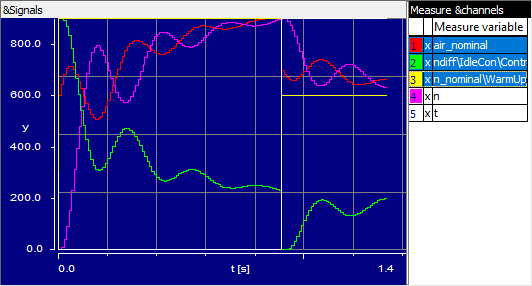
To distribute selected channels to non-overlapping display areas
Select the channels you want to distribute.
Note
Autodistribution affects only selected channels.
In the Edit menu, select Autodistribution.
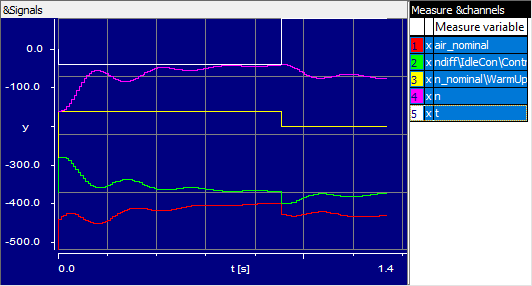
To undo the last scaling operation
Select all channels whose scaling you want to undo.
Note
Undo last scaling affects only selected channels.
Do one of the following:
- In the Edit menu, select Undo last scaling.
- Press <Ctrl> + <u>.
The last scaling operation of each selected channel is undone.
| EXAMPLES |
|---|
|
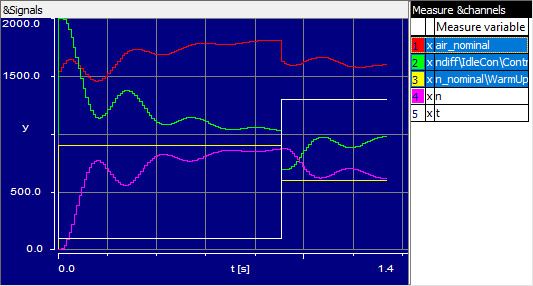
 Original