Editing the Views of a Diagram Item

You can edit the display of individual diagram elements (basic elements, included components, operators, connections, etc.) in the different views. The command is available for all diagram elements.

  1. Select the element whose display you want to edit.
  2. Do one of the following:

    • In the Window menu, select Views.
    • Right-click the diagram element and select Views from the context menu.

    The Views window opens. It shows all views defined in the current database/workspace.

  3. Open the combo box of the required view.
  4. Select the required representation for the diagram element from the combo box.

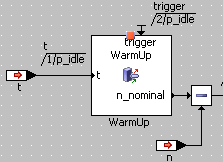
    ClosedNormal

    Default setting in which all available elements, such as symbols, names, sequence calls etc., are displayed.

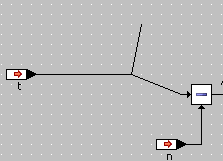
    ClosedAs Line

    The element is replaced by one or more lines from the middle to the pins.

    In the As Line mode, it is not always clear that this is an element. This is why the following warning is displayed if you select an element in As Line mode, or select a connection to this kind of element:

    CAUTION: Elements shown in "As Line" view could be affected!

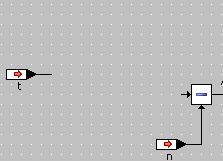
    ClosedInvisible

    The element disappears from the graphic display and can no longer be selected in the drawing area. It is, however, still present in the Outline tab.

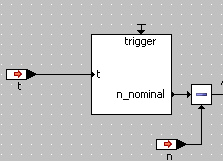
    ClosedContour

    Only the contours of the element and possibly the names of the pins are shown. Sequence calls, name, symbol etc. disappear.

    ClosedHide Content

    The screen display is the same as for Normal, but the component or hierarchy can no longer be opened from the drawing area.

    The content of a hierarchy thus marked is left out of the documentation, the content of a component is included in the documentation.

    ClosedUse Global Settings (*)

    Uses the global setting for this element group; see Making Global Settings for Element Groups.

    Note

    Invisible is the only selection that has a visible effect on comments in block diagrams.

  5. Use the Apply to all graphical objects of the same type and Apply to all occurrences of this element options to determine the range of your settings.
  6. Click OK to confirm your selection.

    The element is displayed in the selected view in accordance with your selection.

For graphical comments, there is an easier way to edit the views; see Adding and Editing a Comment.

See also

Views

Views Window (Graphical Editors)

Making Global Settings for Element Groups

Adding and Editing a Comment