Customizing Menus and Icons – Examples
This topic contains some examples for menu and toolbar configuration:
- Example 1: Editing a <Command ... /> entry
- Example 2: Adding a command to the SCM menu
- Example 3: Shifting menu items to a submenu
- Example 4: Adding a command to the SCM toolbar
Example 1: Editing a <Command ... /> Entry
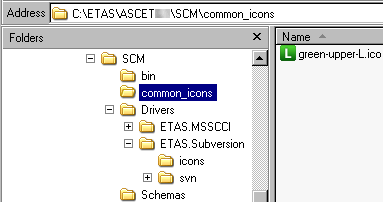
The following <Command .../> entry is required to rename the Get Lock command to Get Lock for Item and replace the default icon with the  green-upper-L.ico file in the C:\ETAS\ASCET6.4\SCM\common_icons folder.
 -
-<Command internalID="11"
id="Lock"
label="Get Lock for Item"
iconID="..\..\..\common_icons\green-upper-L"
considerItemSelection="true"
validItemVersionStates="revision,modified,no_scm"
willOpenDialog="true"
considerItemReferences="false" relevantForConfigurationManagement="false"
singleItemSelectionOnly="false"/>
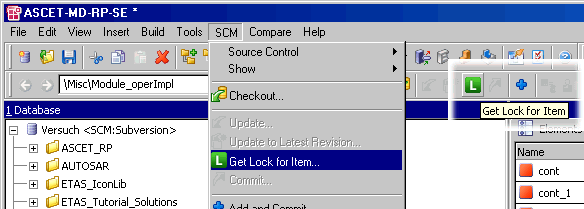
With that definition, the entries in the SCM menu and the SCM toolbar look as follows:
Example 2: Adding a Command to the SCM Menu
The Checkout and Lock Configuration command is defined in the following <Command .../> entry:
<Command internalID="35" id="CheckoutAndLockConfiguration"
label="Checkout and Lock Configuration"
iconID="menu_checkout_and_lock_config"
considerItemSelection="true"
validItemVersionStates="configuration.revision"
willOpenDialog="true"
considerItemReferences="false"
relevantForConfigurationManagement="false"
singleItemSelectionOnly="false"/>
The following code adds the standard definition of the Checkout and Lock Configuration command to the Configuration Management submenu of the SCM menu (online mode):
<MenuDefinitions>
<ASCETMenuBar>
...
<MenuItem label="Configuration Management">
...
<MenuItem id="CheckoutAndLockConfiguration"/>
...
</MenuItem>
...
</ASCETMenuBar>
...
</MenuDefinitions>
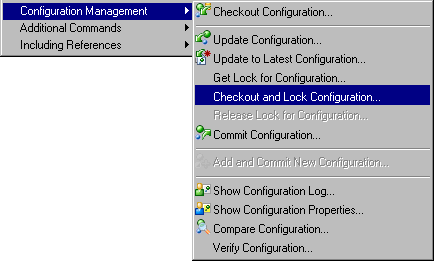
With that, the Configuration Management submenu of the SCM menu can look as follows:
Example 3: Shifting Menu Items to a Submenu
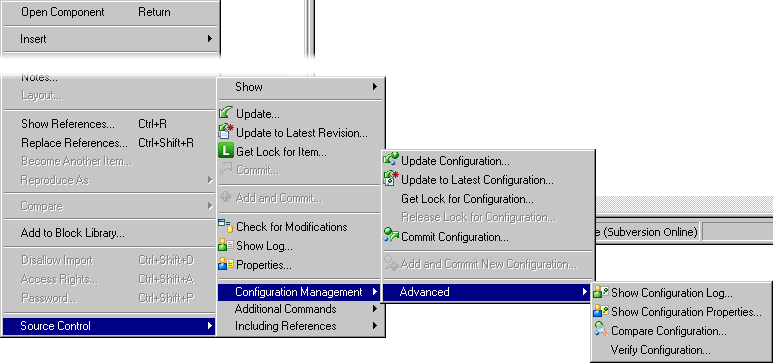
The Source Control context menu (online mode) contains, by default, the same Configuration Management submenu as the SCM menu (online mode). The following code is required to place the last four commands of that submenu in a lower-level submenu named Advanced.
<MenuDefinitions>
...
<ASCETContextMenu>
...
<MenuItem label="Configuration Management">
...
<MenuItem label="Advanced"/>
<MenuItem id="ShowConfigurationLog"/>
<MenuItem id="ConfigurationProperties"/>
<MenuItem id="CompareConfiguration"/>
<MenuItem id="VerifyConfiguration"/>
</MenuItem>
</MenuItem>
...
</ASCETContextMenu>
</MenuDefinitions>
With that, the Configuration Management submenu of the Source Control context menu looks as follows:
Example 4: Adding a Command to the SCM Toolbar
The default definition of the Edit Without Lock command (used to edit items in offline mode) looks as follows:
<Command internalID="16"
id="EditWithoutLock"
label="Edit Without Lock"
iconID="menu_commit_without_lock"
considerItemSelection="true"
invalidItemVersionStates="no_scm,lockedrevision,localedition,modified"
validItemVersionStates=""
willOpenDialog="true"
considerItemReferences="false"
relevantForConfigurationManagement="false"
singleItemSelectionOnly="false"/>
The following code adds the Edit Without Lock command to the SCM toolbar:
<MenuDefinitions>
...
<ASCETToolBar>
...
<MenuItem id="EditWithoutLock"/>
...
</ASCETToolBar>
...
</MenuDefinitions>
With that, the SCM toolbar can look as follows.

See also